

You've got eight good photos from a launch day, client session, café pop-up, or weekend trip. Every image says something useful. Post them one by one and your Story turns into a long tap-through sequence that feels messy fast.
A collage fixes that. It lets you group moments, control the narrative, and make your Story look intentional instead of accidental. If you're searching for how to make a collage on insta story, the mechanics are easy. The true skill is choosing the right method for the story you're trying to tell.
Table of contents
Why Your Instagram Stories Need Collages
The most common mistake new creators make is treating Stories like a camera roll dump. Ten separate slides from the same event usually means people start tapping through without absorbing much. A collage gives those photos a job. One image sets the tone, the others add proof, detail, or personality.
That matters because Story attention is fragile. Internal Meta data showed that multi-photo collages can boost Story completion rates by as much as 35% compared to a sequence of single-image stories, because they fit more context into one slide and reduce viewer fatigue, as noted in Zeely's write-up on Instagram Story collages.
Practical rule: If the photos answer one question, they belong on one slide.
A good collage also makes your brand look more considered. A coach can show a client win with a before image, an after image, a short caption, and one proof point. A product seller can combine packaging, close-up texture, and the item in use. A musician can recap rehearsal, crowd energy, and stage setup without making followers tap through a pile of nearly identical frames.
What collages do better than a Story dump
- They group related moments so viewers understand the point faster.
- They reduce repetition when several photos belong to one scene or idea.
- They create hierarchy because you can make one image the hero and the others support it.
- They feel more polished even when the content itself is casual.
The visual payoff is obvious. The strategic payoff is bigger. Better Stories hold attention, and stronger attention usually leads to more profile visits, more replies, and more clicks on whatever you're promoting. If you want to tighten that whole flow, this guide on how to improve social media engagement is worth reading after you clean up your Story format.
Creating Collages with Instagram's Native Tools
For everyday Story collages, a design app isn't usually necessary. Instagram already gives you three solid paths, and each one suits a different style of content.
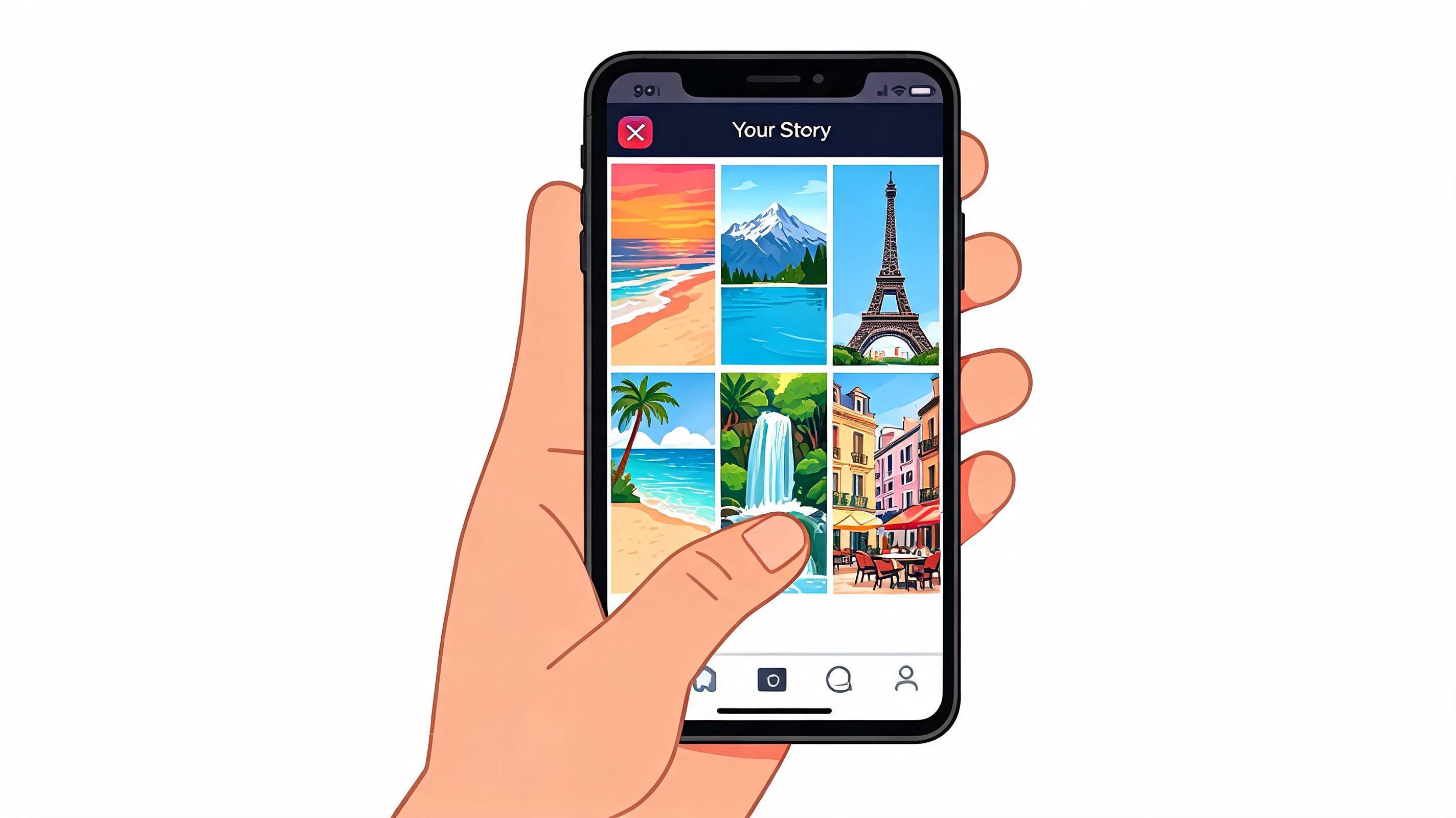
Use Layout when you want clean structure
Layout is the fastest option when you want neat symmetry. It's built into the Story camera and works best for event recaps, side-by-side comparisons, product bundles, and testimonial screenshots.
Here's the simple path:
- Open Instagram and swipe into Story creation.
- Tap Layout in the left-side tools.
- Choose your grid.
- Add photos from your camera roll or shoot them live.
- Finish with text, stickers, or music.
Instagram's native Layout tool supports up to 6 photos in predefined grids and is built for the 1080x1920 Story format, according to Marketing with Morgan's breakdown of the Layout tool.
What works: matching photos, balanced compositions, before-and-after content, and product lineups.
What doesn't: layered scrapbook looks, overlapping images, or anything that needs one photo much larger than the others.
Use photo stickers when you want freedom
If Layout feels rigid, use the photo sticker method. Start with any Story background. That can be a solid color, a selfie, a product shot, or a video. Then open the sticker tray, choose the photo sticker option, and add images one by one from your camera roll.
This method is slower, but it gives you much more control:
- Resize photos with pinch gestures
- Rotate them for a casual editorial look
- Layer images on top of each other
- Mix static photos with text and GIFs
- Create one focal image with smaller supporting shots around it
Don't start adding stickers before you decide what the hero image is. If every photo fights for attention, the collage looks crowded instead of creative.
Photo stickers are my default recommendation for personal brands. They look less templated, and they let you build a Story that feels like a mood board instead of a boxed-in grid.
If you want extra visual polish, Instagram's effects library can help unify the whole Story. This guide to searching for Instagram effects is useful when your collage feels visually disconnected and needs one consistent treatment.
Use Collage mode when you want the new native shortcut
Instagram's newer Collage mode is the middle ground. It's more flexible than classic Layout and more guided than building everything manually with stickers. You can usually access it from the Story upload tray or the plus flow, depending on the current app interface.
This mode matters because users adopted it quickly. The dedicated Collage mode rolled out in 2024 and spiked collage usage by 240% in its first quarter. Later's 2025 analysis also found that these native collages reached an average view duration of 18 seconds, which was 3.2x higher than single photos, according to Minter.io's summary of the feature rollout.
That doesn't mean every collage will magically perform. It means the format is worth taking seriously.
A quick visual walkthrough helps if the interface on your device looks slightly different:
Which native method should you pick
| Method | Best for | Main trade-off |
|---|---|---|
| Layout | Clean grids, quick recaps, side-by-side comparisons | Least flexible |
| Photo stickers | Scrapbook feel, layering, custom compositions | Takes more time |
| Collage mode | Faster custom collages with templates | Interface can vary by app version |
If you're new, start with Layout for confidence. Once you can tell which photo should lead the story, switch to stickers or Collage mode for a more branded look.
Using Third-Party Apps for Advanced Collages
Instagram's built-in tools are good for speed. They're not always good for repeatable branding. If you want better typography, reusable templates, animated elements, or easier batch creation, a third-party app saves time.
The three names I recommend most are Canva, Unfold, and Mojo. They solve different problems, so don't pick based on popularity alone.
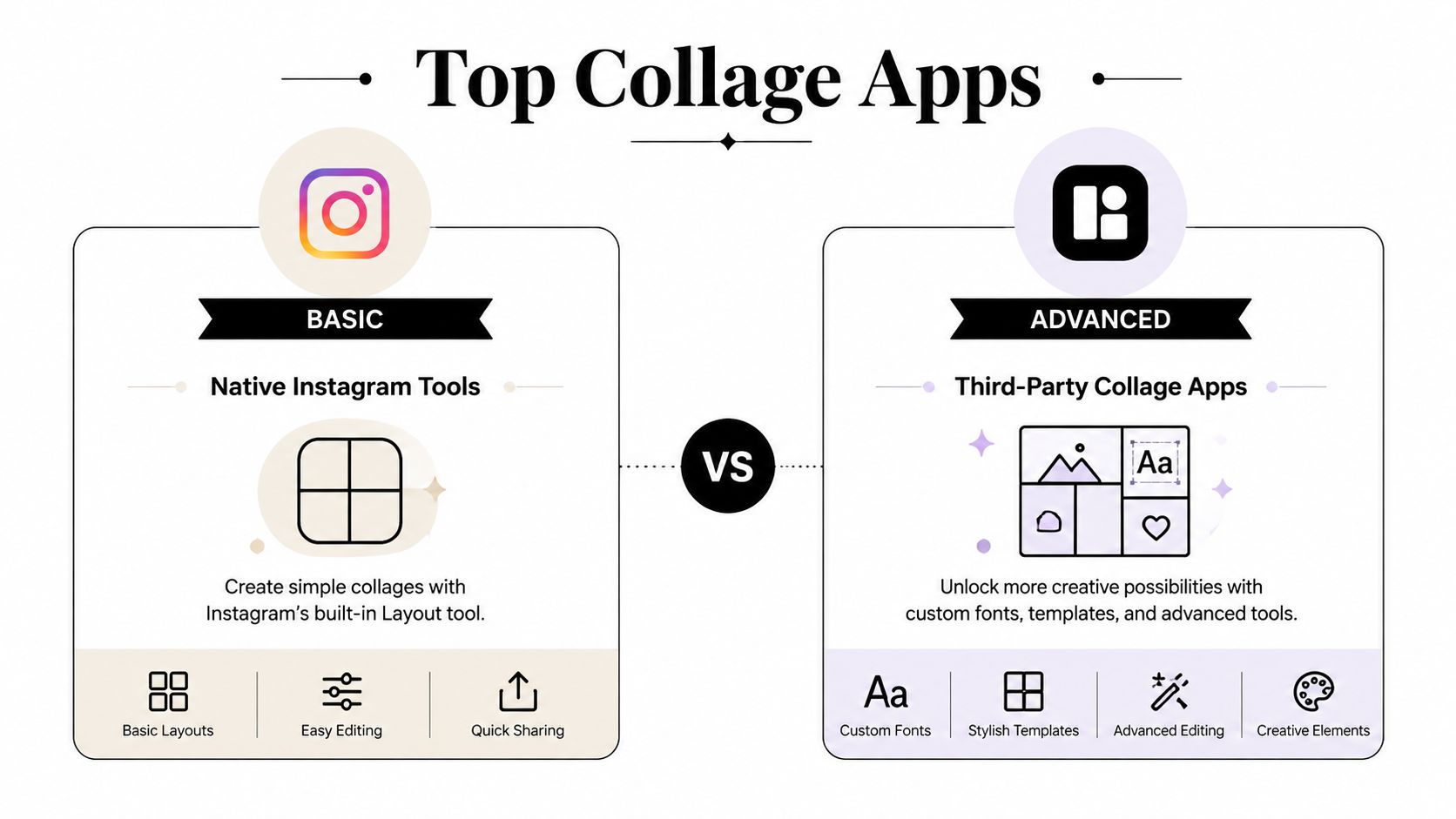
What each app is actually good at
Canva is the workhorse. It's strong when you want templates, brand kits, text styles, and drag-and-drop ease. If you post Stories for launches, promos, webinars, or product drops, Canva is usually the safest bet.
Unfold is cleaner and more editorial. It works well for photographers, stylists, travel creators, and personal brands that want a minimal look.
Mojo is the one to open when static collages feel flat and you want motion. It's especially helpful for animated text, simple movement, and punchier promo Stories.
A creator's best app isn't the one with the most features. It's the one that matches how fast they need to publish.
Top Instagram Collage Apps Compared
| App | Best For | Key Feature | Pricing Model |
|---|---|---|---|
| Canva | Branded Story templates and promo content | Drag-and-drop templates, brand assets, text control | Free plan with paid upgrade |
| Unfold | Minimal, stylish storytelling | Elegant layouts and clean type treatment | Free plan with paid upgrade |
| Mojo | Animated Story collages | Motion-based templates and animated text | Free plan with paid upgrade |
| Instagram native tools | Quick in-app posting | Fast creation without export | Included in Instagram |
A few workflow notes matter more than feature lists:
- Choose Canva if you reuse formats often. A launch recap, product showcase, and FAQ Story can all live as saved brand templates.
- Choose Unfold if your photos are already strong and you don't want heavy decoration.
- Choose Mojo if you need movement, but keep it restrained. Too much animation makes Stories harder to read.
Real trade-offs creators run into
Third-party apps add creative control, but they also add one more export step. That can slow you down if you're posting live from an event. Native Instagram tools are still better for fast, reactive content.
Brand consistency is where outside apps shine. If you already print your branding on physical materials, like packaging, booth signage, or even durable car decals from Custom Sticker Shop, it makes sense to carry the same fonts, spacing, and color feel into your Story collages too.
For a broader breakdown of app options, this guide to Instagram Story collage apps is a helpful companion when you're deciding whether to stay native or build a more repeatable design workflow.
Creative Collage Ideas to Tell Better Stories
You post a Story from a launch day, a client win, or a product drop. Views come in, but replies stay quiet and taps don't lead anywhere. A collage fixes that when each frame has a job. It gives viewers context fast, keeps attention on the screen, and moves them toward the next action, whether that's a DM, a link tap, or a sale.
The best Story collages support one of four goals. Show proof. Add context. Teach a process. Build brand familiarity. If a collage does none of those, it's decoration.
Before and after stories
Before-and-after collages work because they answer the question every potential buyer has. “What changes for me if I trust this person?”
Keep the layout simple. Put the starting point on one side, the outcome on the other, and add one line that explains the difference. For a fitness coach, that might be energy, routine, or confidence. For a designer, it might be clearer branding or better conversions. For a service business, it could be saved time or a cleaner result.
A pro tip here. Label the frames with “before,” “after,” and one specific metric or outcome if you can show it. Then use the next Story to send viewers somewhere useful. Creators selling offers through Taap.bio can turn this kind of proof into a clean path from Story to booking link, product page, or lead magnet.
Product in action stories
Product collages sell better when they remove buying hesitation. One polished photo rarely does that on its own.
Use a mix that answers real shopper questions:
- Hero image for the overall look
- Close-up for texture, finish, or detail
- In-use shot for scale and context
- Result frame for the outcome after using it
This format works for digital products too. Show the template cover, one inside page, the editing view, and the finished result. People buy faster when they can picture themselves using what you made. For brand accounts, this is one of the easiest ways to turn Stories into a sales asset instead of a highlight reel.
Process reveal stories
Process collages build trust because they show your judgment, not just your final output.
A good sequence might show sketch, draft, revision, and final. Or raw footage, edit timeline, cover design, and published post. For a baker, it could be ingredients, mixing, oven shot, and finished cake. For a creator selling education, show the planning doc, slide build, lesson portal, and student takeaway.
Use size to direct attention. Make the final result the largest frame. Keep the supporting steps smaller around it. That gives the viewer a clear focal point while still proving the work behind it.
This format also sets up monetization well. A process collage can lead naturally into “want the template?” or “want the full tutorial?” That's where Story content starts pulling business weight.
Personality and brand texture
Some collages exist to make your account feel memorable. They show taste, routines, standards, and point of view.
Use these for desk setup, tools you use, behind-the-scenes moments, books on your current stack, travel snapshots, or a mini moodboard for an upcoming launch. Over time, that kind of content teaches your audience what your brand feels like. That matters if you want higher trust and stronger conversion later.
Keep text restrained. One short line often beats a paragraph. If you want a cleaner way to add words without making the design feel crowded, these ideas for beautiful quotes on pictures are useful for short overlays that still look polished.
Optimizing and Sharing Your Masterpiece
A collage can be well-designed and still underperform if the final Story is hard to read, blurry, or missing a clear action. Posting is the last editing step.

Keep the file crisp
If you build outside Instagram, export at 1080x1920 so the Story fits the screen properly. Avoid saving and resaving the same design across multiple apps. Repeated exports can soften text and edges.
If your collage looks fuzzy after upload, the issue is usually one of three things:
- Wrong canvas size from the start
- Too many exports before posting
- Tiny text that gets compressed on upload
For a clean technical baseline, check these Instagram Story specs.
Add interaction without clutter
Once the collage is built, add one interactive layer that supports the point. One is enough in most cases.
Try this checklist:
- Add a short headline that tells viewers what they're looking at.
- Use one sticker such as a poll, emoji slider, or question box.
- Place music carefully so it supports the mood instead of distracting from the visuals.
- Leave breathing room around any tappable element.
Give the Story a job
Every collage should lead somewhere, even if that “somewhere” is just a reply. Ask for a DM, invite people to vote, direct them to your latest post, or use the link sticker when you have something specific to send traffic toward.
A pretty collage gets attention. A collage with a clear next step gets results.
Quick Answers to Common Collage Questions
Can you add videos to a collage on Instagram Story
Yes. The easiest approach is to use a video as the background and layer photo stickers on top. Keep the motion subtle. If both the background and every sticker are competing for attention, the Story gets noisy fast.
What if the Layout option is missing
First, update Instagram. Then restart the app and check that you're creating a Story from the Story camera, not another upload screen. If Layout still doesn't appear, use photo stickers instead. They're often the better option anyway.
Why can't you move photos freely
If you used Layout, that's the limitation. Layout locks you into a grid. Switch to the photo sticker method if you want to drag, rotate, resize, and overlap images.
How do you add music without ruining the collage
Add music last. Build the visual story first, then choose audio that supports the tone. If the Story has text-heavy elements, keep the track in the background and avoid anything that feels too aggressive for the message.
What's the best method for beginners
Start with Layout if you want speed and structure. Move to photo stickers when you want more style. Use Canva, Unfold, or Mojo when you need repeatable branding across many Stories.
Your Instagram Story shouldn't just send people to a messy link list. Taap.bio gives creators one polished page to sell digital products, book coaching calls, collect emails, and showcase live content in a visual storefront that matches your brand. If your Stories are doing the work, your link in bio should close the loop.


