In a feed saturated with visual content, a powerful quote overlaid on a stunning image can stop the scroll, spark inspiration, and build a deep connection with your audience. It's a timeless format that combines the emotional weight of words with the immediate impact of art. But creating truly beautiful quotes on pictures requires more than just typing text over a photo. It demands strategic design, compelling typography, and the right tools to bring your vision to life.
This guide is your complete toolkit. We’ll explore the seven best platforms for creating share-worthy quote graphics, from powerful all-in-one suites like Canva and Adobe Express to nimble mobile apps like Word Swag. You'll get direct links, screenshots, and actionable insights for each one. This approach extends beyond social media; for those looking to bring textual art into their physical space, a great resource to check out is this ultimate guide on Sticker Wall Art Quotes.
More importantly, we'll dive deep into practical strategies for integrating these visuals seamlessly into your Taap.bio page. You will learn how to transform your 'link in bio' from a simple menu into a captivating visual gallery that tells your brand's story. Get ready to elevate your content game and make every word count.
Table of contents
1. Inspirational & Motivational Quotes: Fueling Ambition
Inspirational quotes are a powerful tool for engagement, acting as a digital shot of espresso for your audience's aspirations. This category moves beyond generic platitudes, focusing instead on creating beautiful quotes on pictures that resonate deeply with your brand’s core values and your followers' ambitions. The key is to craft visuals that feel both aspirational and deeply personal.
These quotes serve to interrupt the endless scroll with a moment of reflection and drive. They are perfect for brands centered around personal development, fitness, entrepreneurship, or any field that champions growth. Think of a powerful, direct quote in a bold, high-contrast font overlaid on an epic mountain landscape at sunrise. Alternatively, a clean, minimalist sans-serif font on a subtle, professional gradient can convey a sense of calm focus and determination.
To truly fuel ambition and encourage action with your inspirational quotes, resources that champion immediate motivation, such as the startrightnow Homepage, can be a valuable supplement to your visual content strategy. The goal is to not just inspire, but to provide a spark that leads to real-world action.
Quick Tips for Taap.bio Implementation
When adding these motivational images to your Taap.bio page, placement and styling are critical for making an impact.
- Block Sizing: Use a Medium or Large image block to give your quote the visual real estate it deserves. This ensures the text is legible and the background image has room to breathe.
- Typography: Contrast is your best friend. For dark, moody images, use a crisp white font. For bright, airy photos, a strong black or deep gray font will stand out. Choose a font that matches the quote's tone: a strong serif for wisdom, a clean sans-serif for modern motivation.
- Layout & Contrast: Always place text over a part of the image with a simple, uncluttered background. If the image is too "busy," apply a dark overlay (around 30-50% opacity) to the entire image to make your white text pop. This simple trick adds a professional touch and guarantees readability.
2. Adobe Express: Polished & Brand-Centric Designs
Adobe Express is the ideal solution for creators who demand a polished, professional finish without the steep learning curve of advanced design software. It offers a vast library of templates specifically for creating beautiful quotes on pictures, making it simple to produce high-quality, brand-aligned content. The platform's strength lies in its balance of user-friendly tools and robust creative control, backed by the trusted Adobe ecosystem.
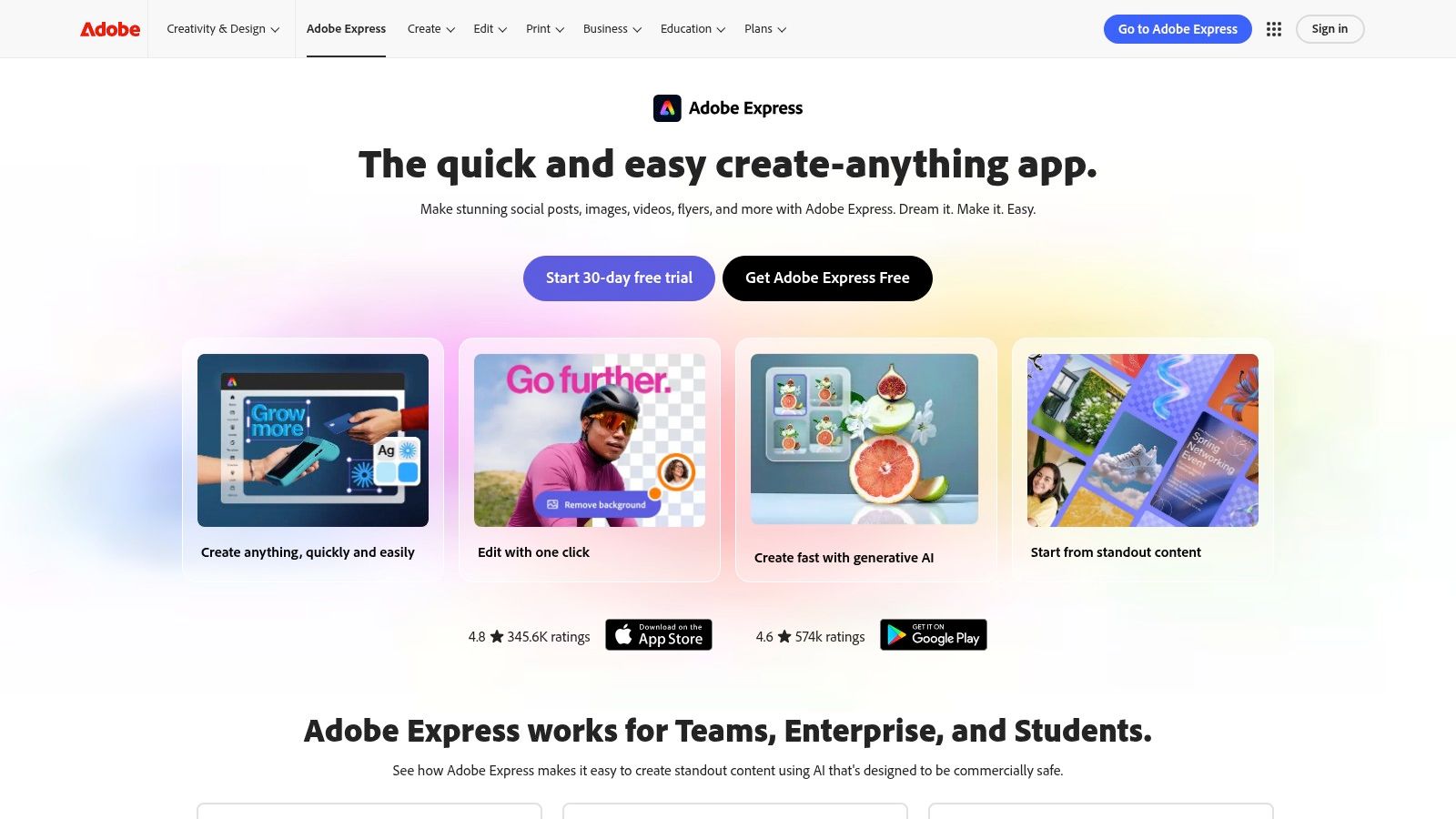
This tool is perfect for maintaining a consistent brand aesthetic across all your social channels. With features like one-click resizing, you can instantly adapt a single quote design for an Instagram post, a Pinterest pin, and a Facebook story. The integration with Adobe Stock provides access to a massive library of high-quality, commercially licensed images, ensuring your visuals are always professional and legally sound. While the free version is quite capable, a Premium subscription unlocks brand kits, premium assets, and advanced AI features. For more ideas on what to create, explore these powerful motivational quotes for young women to inspire your next design.
Quick Tips for Taap.bio Implementation
To make your Adobe Express creations stand out on your Taap.bio page, focus on seamless integration and visual hierarchy.
- Block Sizing: A Medium image block is perfect for showcasing most quote graphics, providing enough space for the text to be clear without dominating the entire page. For hero quotes or key announcements, a Large block can create a powerful focal point.
- Typography: Adobe Express gives you access to the entire Adobe Fonts library. Choose two to three brand fonts and use them consistently. A bold, expressive font for the quote itself paired with a simple, readable sans-serif for attribution creates a professional look.
- Layout & Contrast: Use the "Remove Background" quick action in Adobe Express to place people or objects over new, less-cluttered backdrops for better text legibility. Alternatively, add a semi-transparent colored shape behind your text block directly within the editor to guarantee it pops against any background image.
3. Canva: The All-in-One Design Powerhouse
Canva has become the go-to design tool for millions, and for good reason. It offers an incredibly accessible yet powerful platform for creating beautiful quotes on pictures, turning what was once a professional design task into a simple, enjoyable process. Its strength lies in its massive library of pre-made templates, font pairings, and stock photos, allowing anyone to produce high-quality graphics in minutes.
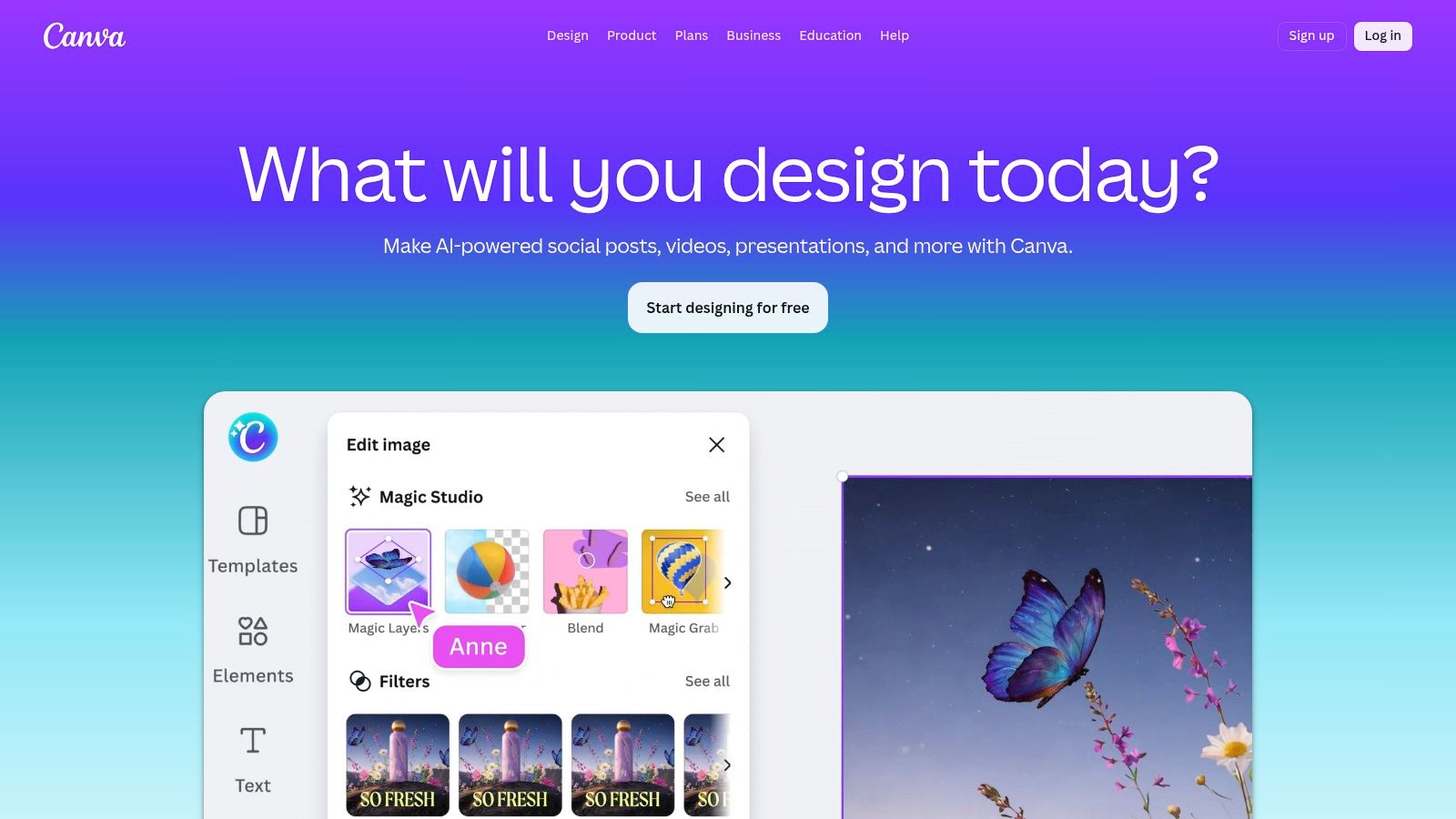
The platform is built around a drag-and-drop editor that eliminates the steep learning curve associated with traditional design software. You can start with a "Quote Poster" template, customize the text, swap the background image, and export it for social media with just a few clicks. This speed and simplicity make it perfect for content creators who need a consistent stream of visual content without spending hours on design. The free version is remarkably robust, though a Pro subscription unlocks premium elements and more advanced features.
With both web and mobile apps, Canva ensures you can create on the go. Its extensive library of tutorials and community-generated content provides endless inspiration. For those looking to add a personal touch to their online presence, these quote images are perfect for more than just social feeds; they can also be used to personalize your professional landing page. You can discover more ideas for impactful personal branding in our guide on quotes for bios.
Quick Tips for Taap.bio Implementation
Canva's social media-optimized templates are a natural fit for your Taap.bio page, creating a seamless look across your digital presence.
- Block Sizing: A Medium image block is ideal for most Canva-created quote graphics, especially those made from square or vertical templates (like Instagram Post or Story sizes).
- Typography: Canva offers an extensive font library. For quote graphics, use their "Font Combinations" feature to find professionally paired fonts that ensure readability and style. Stick to 1-2 fonts per image to avoid a cluttered look.
- Layout & Contrast: Many Canva templates already incorporate design principles like overlays or text boxes to ensure contrast. When creating from scratch, place your text in a solid-colored shape or apply a "filter" with reduced brightness to the background image to make your words the focal point.
4. GoDaddy Studio (formerly Over)
GoDaddy Studio, formerly known as the popular app Over, excels as a mobile-first design tool perfect for creating trend-forward beautiful quotes on pictures directly from your phone. It is built for speed and style, making it the ideal choice for creators who need to produce high-quality, social-media-ready visuals on the go without being tied to a desktop. Its strength lies in its polished templates and powerful typography tools that make professional design accessible to everyone.
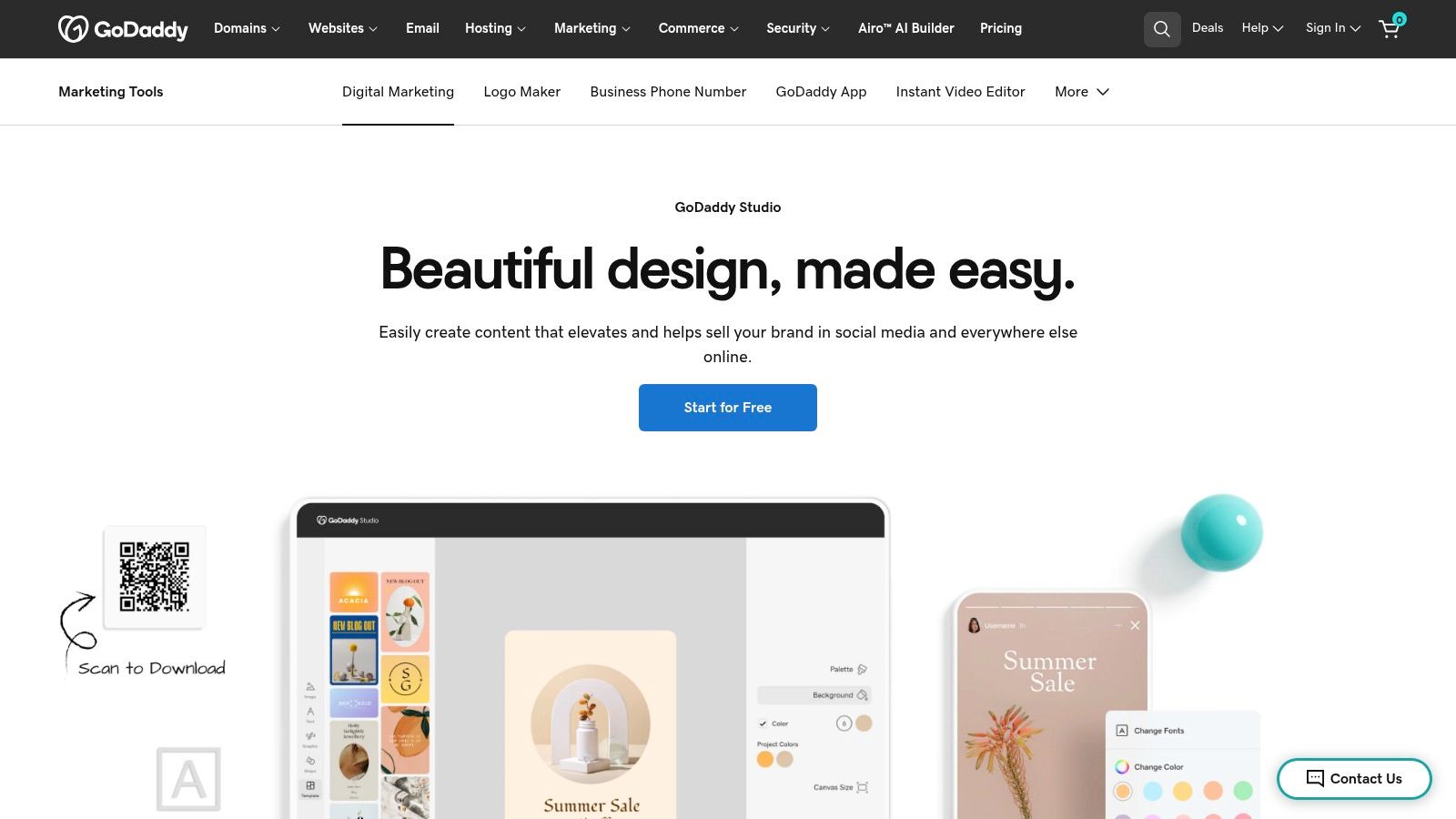
The platform is packed with elegant, mobile-ready text-on-photo layouts and a huge collection of premium fonts, with the option to upload your own on paid tiers. This makes it incredibly easy to maintain brand consistency. Features like the background remover and a library of graphic elements allow for deep customization, ensuring your quote graphics are unique. The user experience is exceptionally smooth on both iOS and Android, and a desktop version is also available. GoDaddy Studio is a fantastic resource for crafting content like that found in our collection of inspirational quotes for strong women, allowing you to bring powerful words to life visually in minutes.
While a free version exists, the full suite of premium content and features is often bundled with GoDaddy Websites + Marketing plans, though standalone subscriptions are also available. This can make the pricing structure feel a bit complex depending on your region and needs. Even so, for creators who prioritize a quick workflow and modern aesthetics, GoDaddy Studio is a top-tier choice that works without a complex setup.
Quick Tips for Taap.bio Implementation
When you use GoDaddy Studio to create quote images for your Taap.bio page, these tips will help them look their best.
- Block Sizing: A Medium image block is perfect for showcasing most quote graphics. If your design has intricate details or a longer quote, upgrade to a Large block to ensure maximum visibility and impact.
- Typography: GoDaddy Studio offers a massive font library. For a modern, clean look, pair a bold headline font with a simple, legible body font. Use the app's text-editing tools to adjust letter and line spacing for a polished, professional finish.
- Layout & Contrast: Use Studio’s built-in overlay feature to add a color layer between your image and text. A semi-transparent black or dark-colored overlay makes light text pop, a key technique for ensuring readability on busy background photos. This simple step can dramatically improve the visual quality of your quote.
5. Word Swag (iOS)
For creators who need to produce stunning visual content on the move, Word Swag is a game-changer. This iOS-only application is built for speed and style, allowing you to transform simple text into captivating typographic art in seconds. It removes the complex design steps, offering a tap-to-style experience that is perfect for crafting beautiful quotes on pictures directly from your phone for immediate posting.
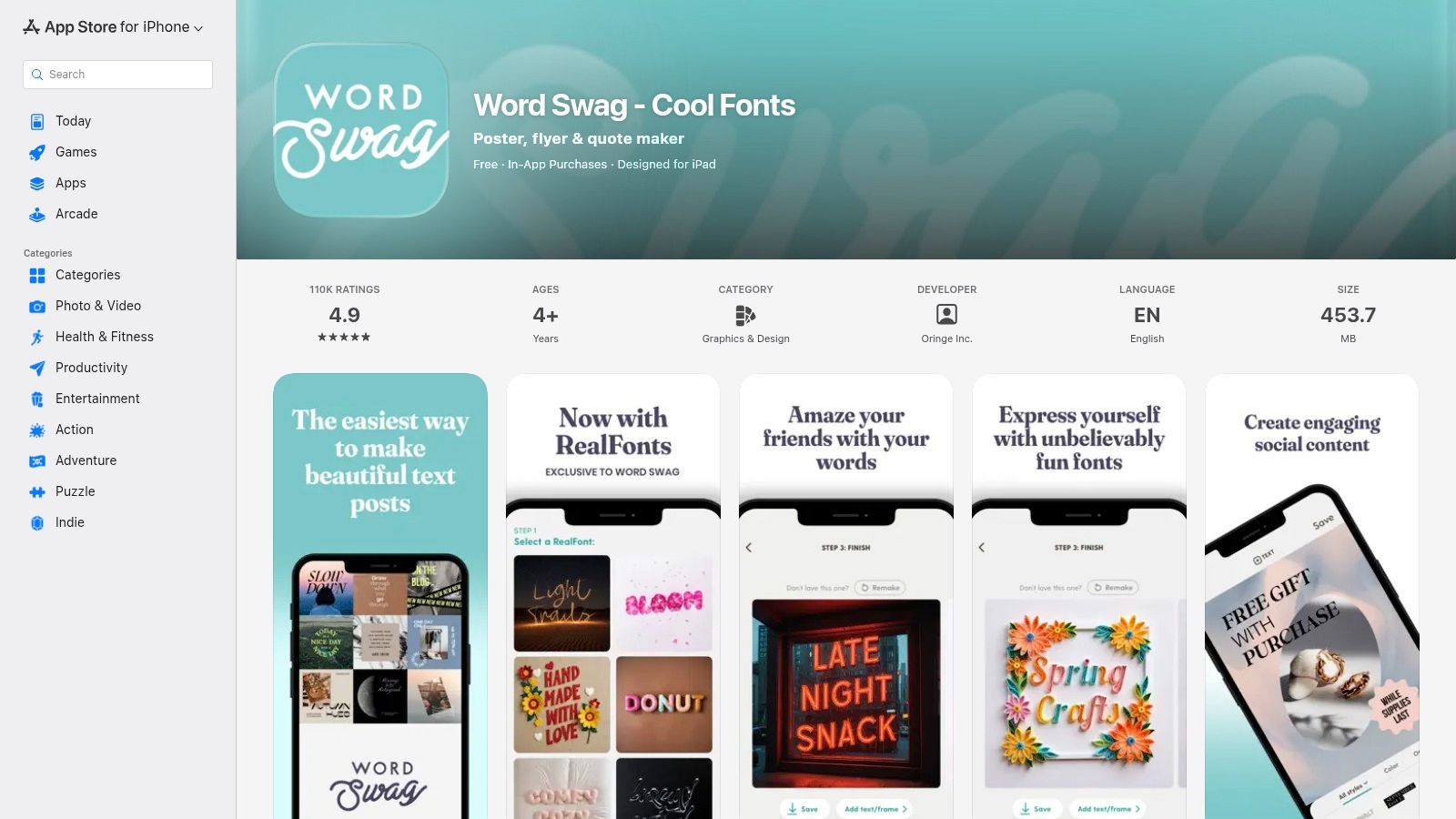
The app's core strength lies in its intelligent typography engine, which automatically generates fresh and modern layouts for your quotes. You simply type your text, choose a style, and the app does the heavy lifting. With millions of free backgrounds from Pixabay and a library of unique "RealFonts" that use photo-based letterforms, your designs will stand out from the typical, overused templates. This makes Word Swag an essential tool for social media managers, influencers, and small business owners who prioritize a fast, mobile-first workflow.
You can download and start creating with Word Swag on the App Store. While the app is free to download, a Pro subscription unlocks the full range of fonts, color palettes, and advanced features like adding your own logo, giving you complete brand control right from your pocket. Its extremely positive user ratings reflect a high-quality, reliable user experience.
Quick Tips for Taap.bio Implementation
The mobile-centric output from Word Swag is a perfect match for your Taap.bio profile, creating a seamless phone-to-profile workflow.
- Block Sizing: A Medium image block is the ideal choice. It's large enough for the intricate text designs to be appreciated without overwhelming the layout of your other links.
- Typography: The app handles the typography for you. Focus on selecting a style within Word Swag that aligns with your brand's personality before you even get to Taap.bio. Choose from bold, modern, script, or artistic font combinations.
- Layout & Contrast: Word Swag’s built-in background library and overlay options make achieving contrast simple. Before exporting, use the app's tools to slightly darken an image or position the text over a calm area. This ensures your quote is perfectly readable when it lands on your Taap.bio page.
6. PicMonkey: Advanced Text Styling & Photo Editing
PicMonkey occupies a sweet spot between simple, template-based apps and complex, professional-grade software. It gives creators significant control over typography and photo editing, making it a prime choice for producing beautiful quotes on pictures that require a more polished or unique look. The platform is built for those who want to go beyond basic text overlays and fine-tune their images before adding a quote.
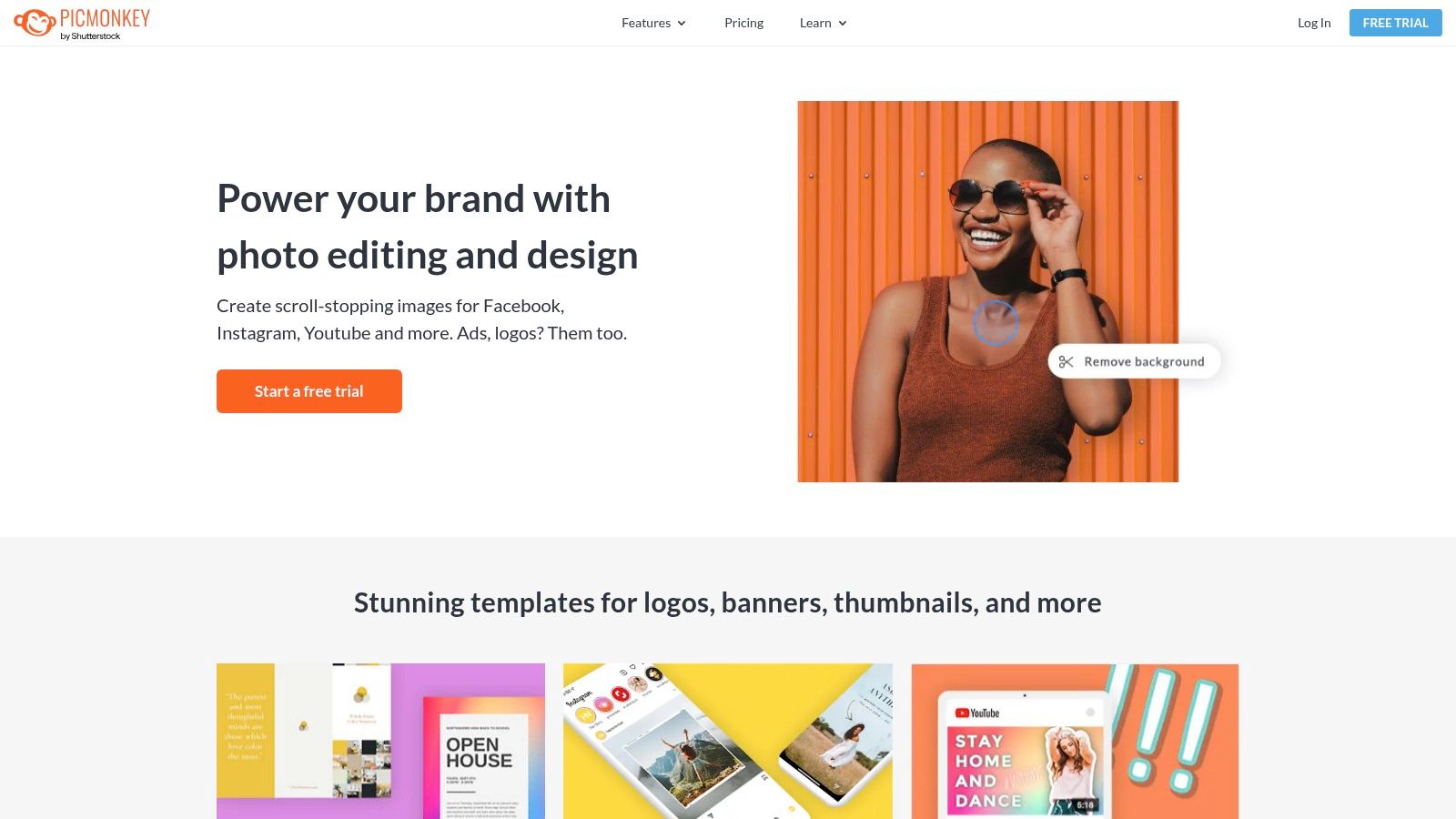
What makes PicMonkey stand out are its robust text effects-like curve, outline, and drop shadow-that can make your quote pop off the screen. It balances this with an intuitive editor, a solid library of social media templates, and cloud storage that lets you re-edit projects later. This is especially helpful for creating a consistent series of quote images. The main drawback is that a paid subscription is necessary to download or export your finished creations after the free trial period. For more ideas on what to write, you can find inspiration from this guide on quotes to put in your bio.
Quick Tips for Taap.bio Implementation
When you design a quote image in PicMonkey, you have more control over the final look. Here’s how to make it shine on your Taap.bio page.
- Block Sizing: A Medium block is excellent for showcasing the detailed text effects you created in PicMonkey. If the quote is short and punchy, a Small block can also work effectively, drawing attention without dominating the page.
- Typography: Since you set the typography in PicMonkey, focus on clarity. Use features like a subtle Drop Shadow or a thin Outline on your text to ensure it separates cleanly from the background image, regardless of the photo's complexity.
- Layout & Contrast: Take advantage of PicMonkey's photo editing tools before you add text. Slightly decrease the brightness or increase the contrast of your background photo to create a better canvas. You can also add a transparent shape layer behind your text for a clean, modern look that guarantees legibility.
7. Snappa: The Speed-Focused Graphics Engine
Snappa is a lightweight, web-based design tool engineered for speed and efficiency. It’s built for creators who need to produce a high volume of quality social graphics without getting bogged down in complex software. This platform is perfect for quickly generating beautiful quotes on pictures by combining its vast library of royalty-free assets with an incredibly straightforward drag-and-drop editor. Its core strength lies in its simplicity, making it a go-to for non-designers who need professional results, fast.
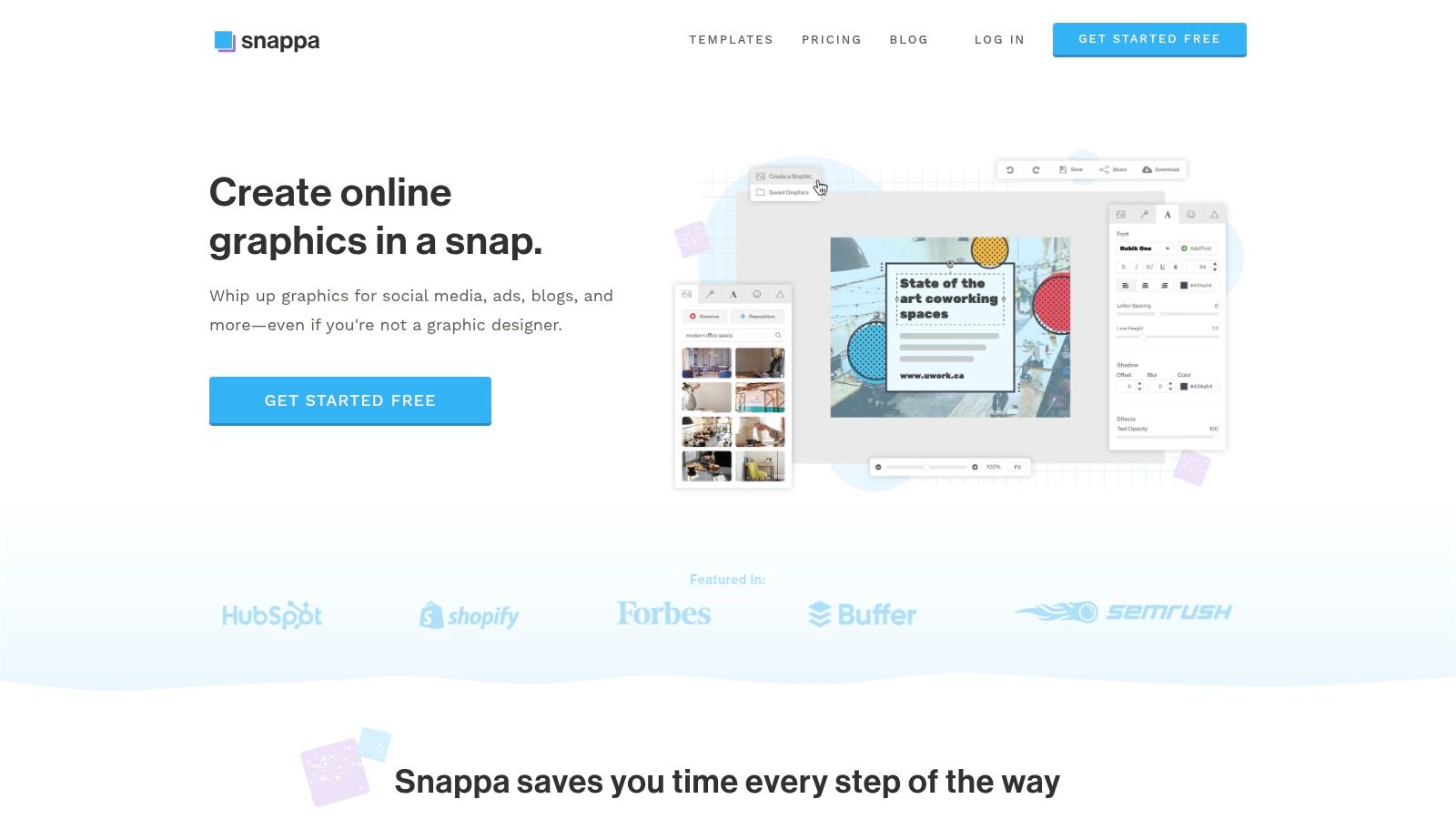
The platform stands out with its massive, fully integrated library of over 5,000,000 photos and graphics, all with clear, royalty-free licensing for commercial use. This eliminates the headache of sourcing and verifying images. With preset dimensions for all major social media platforms and over 6,000 templates, you can go from idea to finished quote image in minutes. While the free plan is limited to three downloads per month, it’s an excellent way to test the platform’s rapid workflow before committing. For those creating a series of themed quotes, such as pairing text with floral imagery, you can find more inspiration with these flower quotes for Instagram.
Quick Tips for Taap.bio Implementation
Snappa’s output is ideal for creating a consistent look across your Taap.bio page.
- Block Sizing: Use a Medium block for a standard, impactful quote. If you're creating a gallery of several quotes, a grid of Small blocks can create a visually engaging mosaic effect on your page.
- Typography: The Pro version of Snappa allows custom font uploads. Use this to maintain brand consistency by importing the same font you use on your Taap.bio page. For the free version, select a font from their library that closely matches the tone of your quote, a modern sans-serif for clarity or an elegant serif for a touch of wisdom.
- Layout & Contrast: Snappa includes a simple “graphics” tool where you can add a semi-transparent colored shape behind your text. Use this to create a text box that guarantees readability, even on a busy background image. A black shape with 40% opacity is a classic choice that makes white text stand out.
Top 7 Tools for Beautiful Quote Images
| Product | 🔄 Implementation complexity | ⚡ Speed / efficiency | ⭐ Expected outcomes | 💡 Ideal use cases | 📊 Key advantages |
|---|---|---|---|---|---|
| taap.bio | Medium — tactile grid editor with some learning curve for complex layouts | Moderate — quick onboarding, building custom layouts takes time | High — highly visual, interactive landing pages with rich widgets (4/5) | Creators needing a branded link-in-bio with live embeds and portfolios | Modular bento grid, deep real‑time widgets (Spotify, GitHub, IG), separate mobile/desktop editing |
| Adobe Express | Low — beginner-friendly templates and guided tools | Very fast — one-click resize and ready templates | High — polished, brand-safe social graphics (4/5) | Users wanting quick, professional quote posts with stock assets and brand controls | Large template library, Adobe Stock integration, brand kit & scheduling (paid) |
| Canva | Low — intuitive drag-and-drop with broad feature set | Fast — rapid creation and sharing across platforms | High — versatile outputs for many styles (4/5) | Teams and creators who need variety, speed, and collaboration | Massive template/library, easy sharing, print options and mobile/web apps |
| GoDaddy Studio | Low — mobile-first, straightforward text-on-photo workflows | Very fast — optimized for on‑the‑go creation | Medium — trendy, phone-optimized posts (3/5) | Mobile creators producing Instagram/TikTok quote graphics quickly | Stylish typography, mobile UX, fast branding tools |
| Word Swag (iOS) | Very low — tap-to-style app focused on short quotes | Extremely fast — instant typographic styles | Medium — standout short-quote visuals (3/5) | iOS users who publish quick quote graphics from phone | Auto-styled typography, unique RealFonts, simple export sizes |
| PicMonkey | Medium — more editing controls, suitable for detailed work | Moderate — more steps for refinements and exports | Medium-High — refined, editable quotes with strong text effects (3.5/5) | Creators needing photo retouch + typographic control before posting | Robust text effects, re-editable projects, background remover |
| Snappa | Low — lightweight editor for fast social graphics | Very fast — optimized for batch production | Medium — efficient repeatable quote workflows (3/5) | Marketers producing batches of social quote posts | Large free photo library, preset sizes, simple editor and exports |
From Creation to Conversion: Make Your Quotes Work for You
You now possess a full toolkit, not just of applications, but of strategies for creating beautiful quotes on pictures that resonate and deliver results. We've explored everything from the all-in-one power of Adobe Express and Canva to the mobile-first simplicity of Word Swag and GoDaddy Studio. Each tool offers a unique path to transforming your words into compelling visual statements.
The real takeaway, however, is that an effective quote image is more than just pretty typography on a scenic background. It's a strategic asset. By categorizing your quotes by theme, as we've outlined, you create a content pillar that consistently communicates your brand's voice, values, and purpose. An inspirational quote builds connection, a testimonial builds trust, and a promotional quote drives action. The magic happens when these elements work together.
Choosing Your Creative Companion
Selecting the right tool depends entirely on your workflow and specific needs. Don't feel pressured to master all seven; focus on the one that best fits your goals.
- For the All-in-One Creator: If you need a single platform for social media, web graphics, and your link-in-bio page, tools like Canva and Adobe Express are your best bet. Their vast template libraries and integration with other marketing assets make them incredibly efficient.
- For Mobile-First Agility: If you create content primarily on your phone, GoDaddy Studio and Word Swag are designed for you. They prioritize quick, stylish text-on-image creation, perfect for generating content on the fly.
- For Focused Simplicity: If you just want a straightforward, no-fuss tool to make great-looking quote graphics without a steep learning curve, Snappa is a fantastic choice.
Turning Inspiration into Action
Remember the practical tips for placing quotes within your Taap.bio blocks. Contrast is king; ensure your text is always readable against the background. Use the recommended aspect ratios to guarantee your images look sharp on any device. Most importantly, see these quote blocks not as isolated pieces of content, but as integral parts of a larger user journey.
Your Taap.bio page acts as the central hub for this journey. A beautifully designed quote block can capture attention, but its true power is realized when it’s placed next to a "Buy Now" smart widget, a "Subscribe to my Newsletter" link, or a gallery of your latest work. This intentional arrangement guides your audience from a moment of inspiration directly to a point of conversion. You are not just sharing nice words; you are building a pathway that nurtures your community and grows your brand. Go beyond just posting and start connecting, converting, and creating a lasting impact.
Ready to turn your visual content into a powerful, interactive landing page? With taap.bio, you can seamlessly integrate the beautiful quote images you create into a stunning and effective link-in-bio. Arrange your visuals alongside smart links and widgets to build a dynamic experience that converts followers into customers. Get started with taap.bio today and build the brand destination your audience deserves.