

Stop sending your followers on a wild goose chase just to hear your music or podcast. The old way—dropping a simple Spotify link—forces people to leave your page, and let's be honest, many of them won't come back.
There’s a much better way. You can embed a Spotify playlist directly into your link-in-bio page by grabbing a simple share code from Spotify. This instantly transforms that static link into a fully interactive player, letting your audience listen right then and there.
Table of contents
Turn Your Link in Bio Into a Listening Experience
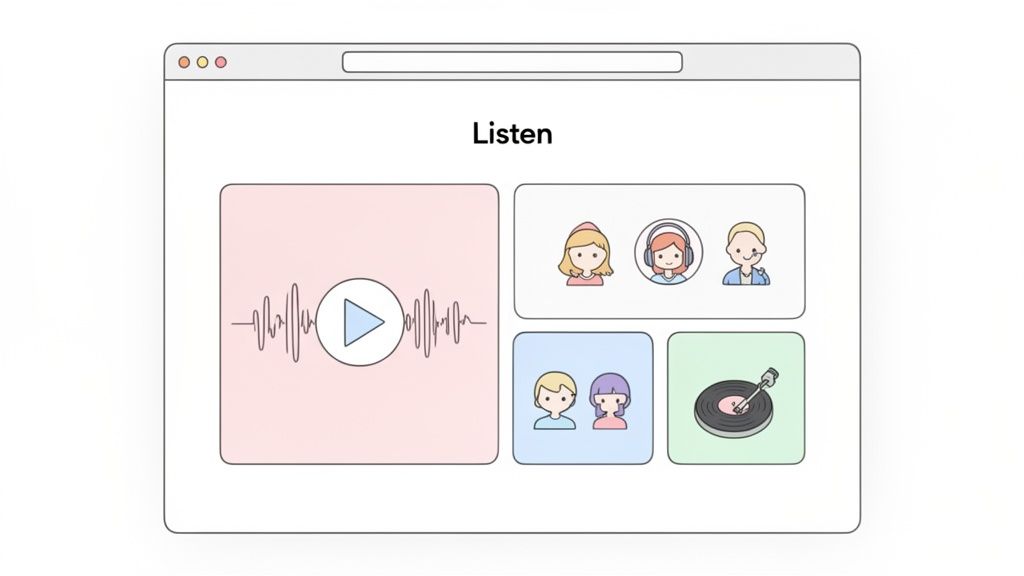
Think of your link-in-bio page as your digital headquarters. It’s the one place your audience goes to find everything you're about. So why would you immediately send them away? Embedding a playlist isn't just a neat trick; it's a fundamental shift in how you engage your audience.
By bringing the music directly to them, you turn a passive page into an active, immersive experience. Visitors can press play and start listening without any extra clicks or new tabs. This is exactly what modern platforms like Taap.bio are built for, using a bento-style grid that creates a slick, dashboard-like feel where your content takes center stage.
Why Inline Playback is a Game Changer
That ability for visitors to listen without leaving your page is called inline playback, and it’s a massive advantage for any musician or creator trying to build a dedicated following.
Here’s why it’s so effective:
- Boosts Your Streams and Discovery: Every listen over 30 seconds counts as a stream on Spotify. By removing the friction of leaving your page, you make it incredibly easy for fans to discover and play your tracks, which directly contributes to your numbers.
- Keeps People on Your Page Longer: An interactive audio player is sticky. It keeps visitors engaged, giving them more time to notice your other important links—like merch stores, tour dates, or social profiles.
- Creates a Polished, Professional Vibe: A simple link looks, well, simple. An embedded player shows you’ve put thought into the user experience, giving your page a premium feel that stands out. You can dive deeper into crafting the perfect page with our guide for musicians.
Spotify's power as a discovery engine is undeniable. With total streams projected to hit a staggering 3.2 trillion in 2026—a 14% increase from the year before—smart creators are finding ways to get in on that growth. And with 43% of users tuning into curated playlists every month, embedding one on your page is a no-brainer.
Comparing Spotify Embed Options
When you decide to embed a playlist, you have a couple of choices. You can use the standard code from Spotify, or you can use a more integrated tool like Taap.bio's widget. Here's a quick breakdown of how they compare.
| Feature | Standard Spotify Embed | Taap.bio Spotify Widget |
|---|---|---|
| Setup | Simple copy-paste of iFrame code. | One-click integration with just a Spotify link. |
| Customization | Limited to size (compact/standard). | Advanced resizing, inline playback toggle, custom layout options. |
| Mobile Experience | Can be clunky and oversized on mobile screens. | Fully responsive and optimized for both desktop and mobile views. |
| User Experience | Basic playback; often opens the Spotify app. | Seamless inline playback keeps users on your page. |
| Integration | Sits as a separate element on a webpage. | Blends perfectly into Taap.bio's bento grid layout. |
While the standard Spotify embed works, it's clear that a dedicated widget gives you far more control over the look, feel, and performance of your player.
As you build out your creator page, it pays to shop around. When looking for the right platform, it's always smart to check out various Stan Store alternatives that might better suit your needs. Ultimately, choosing a tool that's built for rich media embeds like Taap.bio will give you a serious edge in turning casual visitors into dedicated fans.
How to Get Your Spotify Embed Code or URI
Alright, first things first. To get that slick Spotify player onto your page, you need to grab its unique digital address from Spotify itself. This is your key to sharing your favorite tracks, albums, or curated playlists.
Spotify gives you two main ways to do this: with an embed code (sometimes called an iFrame) or a Spotify URI. It's crucial to know the difference, because the one you need depends entirely on where you're putting it.
Think of the embed code as a pre-packaged, self-contained little music player. It's a chunk of HTML that works great for a traditional blog post or website. The Spotify URI, on the other hand, is more like a secret key. It's a direct, clean link that smart platforms like Taap.bio use to pull in your playlist and display it beautifully, complete with album art and interactive features.
For Taap.bio, you'll almost always want the URI. It's what allows the widget to work its magic.
Finding Your Share Link in the Spotify Desktop App
Grabbing your link from the Spotify desktop app is super simple. The steps are the same whether you're sharing a single banger, a full album, or your masterpiece of a playlist.
Just head over to the content you want to feature and find the three-dot icon (...) sitting next to the title. Give that a click, hover your mouse over the Share option, and a new menu will pop out.
You’ll see a couple of choices:
- Copy link to playlist: This gives you a standard URL that you can paste anywhere.
- Copy Spotify URI: This is the one you need for most modern integrations, including Taap.bio.
- Embed playlist: This option provides the classic iFrame code for older websites.
Pro Tip: Here’s a slick shortcut I use all the time. When you're in that "Share" menu, hold down the Option key (on Mac) or the Alt key (on Windows). You'll see the "Copy link..." option instantly switch to "Copy Spotify URI." It saves you a click and gets you exactly what you need.
Grabbing the Code from the Spotify Web Player
If you're a web player person, don't worry—the process is virtually identical. Spotify did a great job keeping the experience consistent.
Once again, navigate to your playlist, album, or song and click on those familiar three dots. Hover over Share, and you'll be presented with the very same options to copy the embed code or the URI. This makes it a breeze to get your link, no matter which version of Spotify you have open.
Ultimately, knowing how to leverage these kinds of social media integration tools is what separates a static page from a truly dynamic one.
The bottom line is simple: know what your platform needs. For a basic blog, the iFrame embed code will do the job. But for a powerful, customizable experience on your Taap.bio page, the Spotify URI is essential to create something your audience will love to interact with.
Adding the Spotify Widget to Your Taap.bio Page
Alright, you've got your Spotify link ready to go. Now for the fun part: actually getting your music onto your Taap.bio page. This is where the platform’s drag-and-drop editor really comes alive. Forget fumbling with complicated code—this is about designing an experience for your visitors.
The whole process couldn't be simpler. Taap.bio uses smart widgets that do the heavy lifting for you. Just find the Spotify widget in the block library, drag it right onto your page, and paste in that URI you just copied. That’s literally it. The widget instantly populates with your playlist's cover art, tracklist, and play button.
Choosing the Right Spotify Block
Taap.bio gives you a few different flavors of the Spotify widget, so you can pick the one that fits what you’re trying to share. Each one is designed for a specific purpose.
- Playlist or Album: This is your go-to for showcasing a full collection of songs. It's perfect for your "Best Of" playlist or your latest album release.
- Single Track: Got a new single dropping? Or maybe just one song you really want people to hear? This is the block for you.
- Artist Profile: This is a powerful one. It embeds your entire artist page, pulling in dynamic info like your current monthly listeners and all your latest releases automatically.
- Podcast Episode: If you’re a podcaster, you can share a specific episode, complete with its own description and play button.
No matter which one you choose, the block pulls in all the necessary info directly from Spotify. This means your page stays fresh and up-to-date without you ever having to manually change a thing. It’s a huge improvement over a static link that just sits there.
This simple diagram shows the flow of grabbing your Spotify link from either the desktop app or web browser for use on your page.
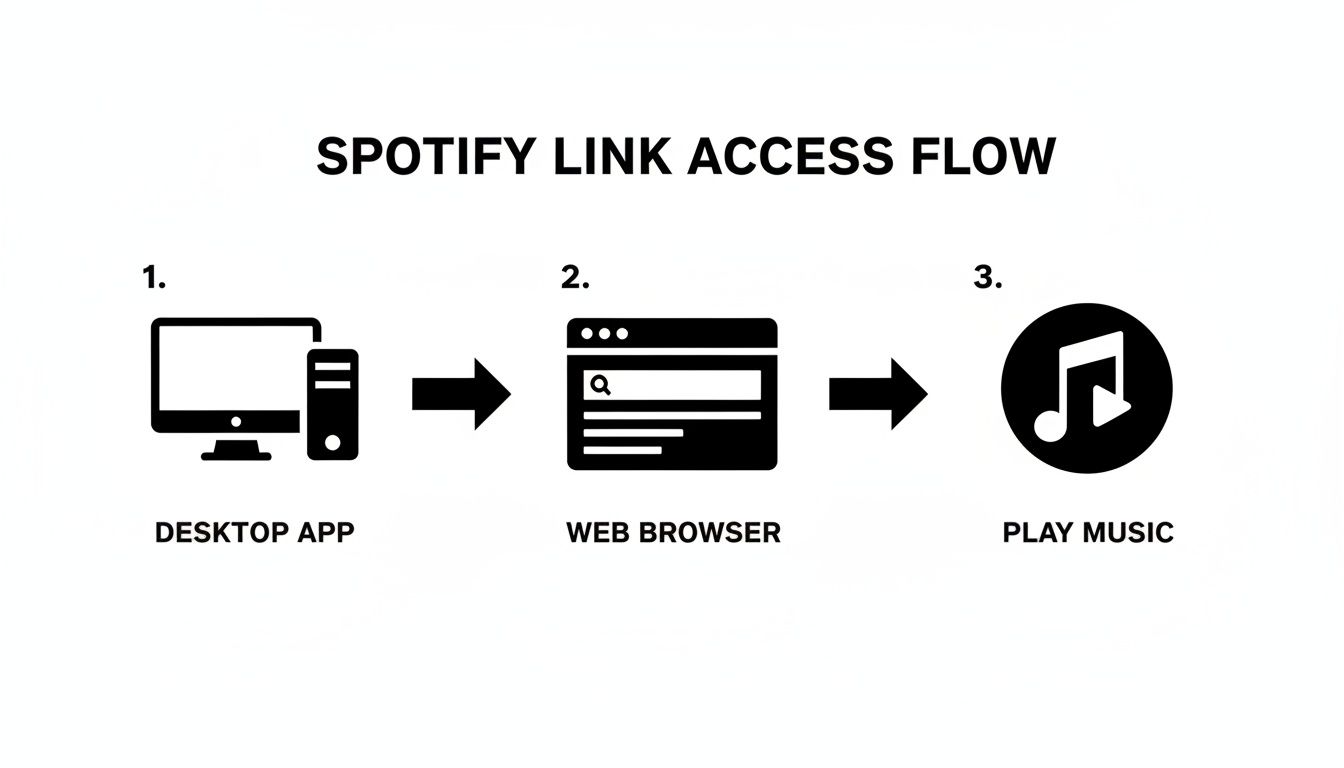
As you can see, it doesn't matter if you start on the desktop app or the web player—the goal is always to get that shareable link to power the widget on your page.
Making It Your Own
Once the widget is on your page, the real creativity begins. You can click and drag the corners of the block to resize it however you want. Want your main playlist to be the star of the show? Make it big and bold. Prefer to tuck a featured track into a smaller spot? You can do that, too.
The goal isn't just to embed a Spotify playlist; it's about making it a natural part of your brand. When you combine your audio with images, text blocks, and other links, you’re telling a much richer story about who you are.
For instance, a musician could place a large Spotify playlist right next to a smaller YouTube widget featuring their latest music video. Below that, they could add a text block with upcoming tour dates. Or a podcaster could highlight their latest episode alongside links to their social media and a button for their newsletter. The layout possibilities are truly endless.
If you want to get inspired, check out our roundup of the best widgets for websites to see what other creators are building.
Ultimately, this approach turns your link-in-bio page from a static list of links into an interactive hub where people can truly engage with your content. It’s a surprisingly intuitive system that puts all the design power right where it belongs: in your hands.
Customizing Your Spotify Embed for Maximum Impact
Okay, so you've got your playlist on the page. That's a great start. But just dropping it there is only half the battle. The real magic happens when you customize the player, turning it from a simple embed into a core part of your page's experience.
This isn't just about aesthetics. It's about consciously guiding your audience's attention. With a tool like Taap.bio, you're not locked into a generic, one-size-fits-all look. You get to play architect and design an experience that gets you more streams and fans.
Resizing Your Widget for Visual Hierarchy
Think of it this way: the size of an element on your page tells visitors how important it is. If your main goal is to promote a new single, you'll want that playlist front and center.
You can easily grab the corner of the Spotify widget and drag it to make it larger, making it the undeniable focal point. A big, bold playlist is an invitation that's hard to ignore.
On the other hand, maybe you want to share a secondary playlist—a "get to know me" collection or some behind-the-scenes audio. You can make that widget smaller and tuck it alongside your other links. This lets you build a clean, bento-style layout where every piece of content has its place, telling a clear story about who you are.
The Strategic Power of Inline Playback
Here’s one of the biggest game-changers: inline playback. This is a feature that lets people listen to your music or podcast right there on your Taap.bio page, without ever being kicked over to the Spotify app.
Why is this so powerful?
- It Kills Friction: Every time someone has to switch apps, you risk losing their attention. Inline playback makes it completely effortless for them to hit play and dive into your world.
- It Directly Boosts Your Streams: When a fan listens for over 30 seconds from the embedded player on your page, Spotify counts it as a stream. This is a direct, measurable win for your analytics.
- It Keeps People on Your Page Longer: An interactive audio player is engaging. It gives visitors a reason to stick around, explore your other links, and connect with you on a deeper level.
By simply flipping on inline playback, you’re creating a much stickier and more rewarding experience for your audience. It's a small change that can have a huge impact on your stream count. Small tweaks like this are key, which you can read more about by exploring how to improve click-through rates on your page.
Autoplay: A Word of Caution
The idea of your new track starting automatically the moment someone lands on your page sounds pretty cool, right? In reality, you need to handle this feature with extreme care.
Unexpected, blasting audio is one of the fastest ways to annoy a visitor and send them scrambling for the back button. For that reason, my advice is almost always to leave autoplay turned off. Let your audience choose to engage.
There are, however, a few rare exceptions where it might work:
- A dedicated landing page for a new single premiere, where the visitor's expectation is to hear the song.
- An artist's visual portfolio where a quiet, ambient track could enhance the mood without being a distraction.
Even then, tread lightly. Your first priority should always be respecting your visitor's experience. You want your playlist to feel inviting, not intrusive.
Designing a Layout That Works on Mobile and Desktop
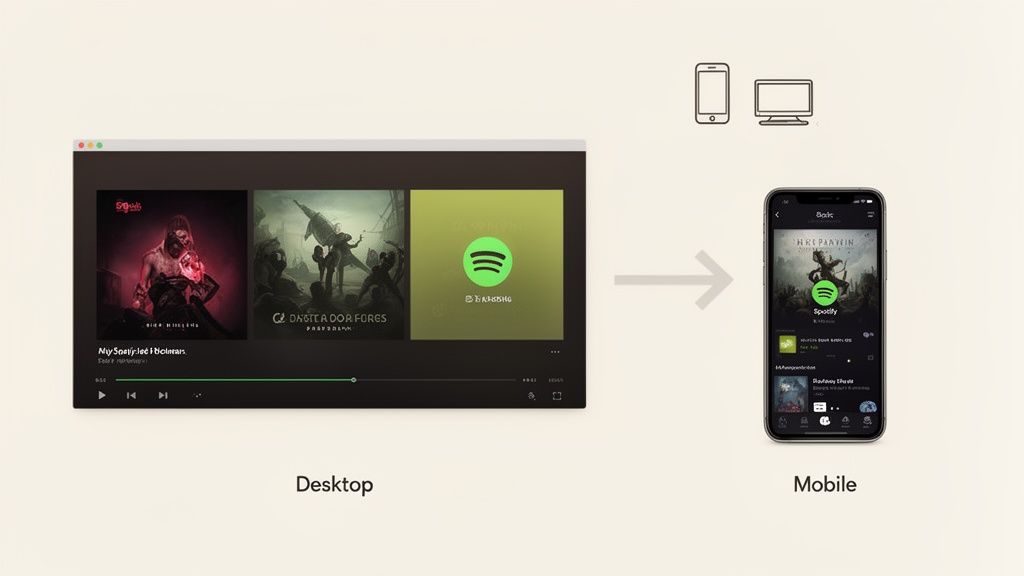
So, you've perfectly arranged your Spotify embed next to a YouTube video and your social feed. It looks fantastic on your big desktop monitor. But have you checked it on your phone?
This is a classic blind spot I see all the time. That beautiful, wide layout often collapses into a chaotic mess on a mobile screen. Suddenly, your horizontal playlist shoves every other piece of content down the page, forcing visitors into an endless scroll just to find your other links. It’s a frustrating experience, and it can lose you followers.
That’s precisely why Taap.bio gives you separate editing controls for desktop and mobile. Instead of forcing one compromised design to work everywhere, you can craft two unique layouts. This means your page looks and feels intentional, no matter how someone views it.
Optimizing Your Mobile View
On mobile, your mantra should be clarity and conciseness. You’re working with limited screen space, and your visitors are often on the go, looking for information fast.
The best approach is to think vertically. A compact, vertical Spotify widget is almost always the right call here. It shows the essentials—album art, track title, and a play button—without completely taking over the screen.
Here are a few strategies I always recommend for mobile:
- Be ruthless with priority: Whatever is most important—your new single, a tour announcement, a key call-to-action—put it right at the top. No exceptions.
- Stack everything: Arrange your widgets in a clean, single column. A Spotify playlist can sit perfectly above a YouTube video or a link to your merch store.
- Choose compact widgets: Whenever possible, use the smaller widget variations to keep the page feeling light and easy to scan.
Crafting an Immersive Desktop Experience
With a desktop screen, you’ve got room to play. This is your chance to build out a rich, bento-style grid that tells a more complete story. Here, you can afford to make your main Spotify playlist large and in charge, giving it a strong visual anchor.
From there, build around it with complementary content. Picture your main playlist sitting next to a grid of your latest Instagram posts, with a text block sharing your bio on the other side. Below that, you could feature a music video from YouTube and a smaller widget for a secondary "influences" playlist. This turns your page from a simple link list into a personal dashboard.
The key is to think like a designer. A great layout guides the eye and communicates hierarchy. The desktop view is for immersion and discovery, while the mobile view is for quick access and streamlined engagement.
By customizing both, you guarantee every visitor gets the best possible experience. When you embed a Spotify playlist, you're not just dropping in a link; you're designing an interactive feature that needs to feel right everywhere. To really nail this, I’d suggest digging into some core mobile-first design principles in our dedicated article.
Common Questions About Embedding Spotify Playlists
When you first start embedding Spotify playlists, it's natural to hit a few snags. I've worked with countless creators on this, and I've seen just about every question pop up. Let's walk through the most common issues I see and get them sorted out with some straightforward, practical advice.
One of the most frustrating problems is seeing a big, empty space where your beautiful playlist should be. If your embedded player is a no-show, the fix is usually surprisingly simple.
I’ve seen this happen a thousand times, and nine times out of ten, the culprit is a private playlist. If your playlist is set to 'Private' in Spotify, no one else can see it—and that includes the embed code. Always check that your playlist is marked 'Public' before you do anything else.
Another classic mistake is grabbing the wrong link. You'll need the specific Spotify URI (it looks like spotify:playlist:12345), not the web address from your browser's URL bar. Platforms like Taap.bio rely on that URI to correctly pull in and display your playlist.
Can I Embed a Collaborative Playlist?
Absolutely! You can embed a collaborative playlist the exact same way you’d embed your own. Just find the public share URI and pop it into the widget.
The real magic here is that the embedded player is dynamic. Every time you or a collaborator adds a new song or reorders the tracklist, your embedded playlist updates automatically. It's a brilliant feature for group projects, building a community playlist with your fans, or just curating tunes with friends.
Does an Embedded Playlist Count as a Stream?
This is the big one, especially for artists and curators. The answer is a huge yes. When a visitor plays a song from your embedded player for more than 30 seconds, Spotify counts it as a legitimate stream.
This is exactly why using a tool with inline playback is so powerful. By letting listeners play music without ever leaving your page, you make it incredibly easy for them to listen long enough to trigger that stream count. It's a direct way to boost your analytics and improve your visibility on Spotify.
Matching the Embed to Your Brand
Let's be honest, the standard Spotify embed doesn't give you much to work with visually—it's just a light or dark theme. This can make the player stick out like a sore thumb on a carefully designed page. But when you use a platform like Taap.bio, you get the creative control you need.
You can completely integrate the player by:
- Resizing the widget to make it a bold centerpiece or a subtle addition.
- Placing it on a custom-colored background that perfectly matches your brand's style.
- Arranging it inside a bento grid with your other links and content for a clean, modern layout.
This kind of flexibility lets you make the playlist feel like it truly belongs on your page, rather than just being a clunky add-on.
While you're focused on getting your music on your page, some of your visitors might be interested in taking it off for personal use. For anyone curious about that, resources are available that explain the process of converting Spotify music to MP3 for offline listening.
Ready to build a page that not only looks incredible but keeps your audience hooked? With Taap.bio, you can easily embed Spotify playlists, videos, and all your links into a stunning bento grid that's optimized for any device. Start creating your ultimate link-in-bio experience today at https://taap.bio.


