
Grabbing your Instagram link should be easy, but it can feel surprisingly hidden if you don't know where to look. The quickest way? Pop open the app, head to your profile page, and tap the "Share Profile" button. You'll see an option to "Copy Link"—tap that, and your profile URL is copied to your clipboard, ready to be pasted wherever you need it.
This works like a charm on both iPhone and Android for your main profile link.
Why Your Instagram Link is a Big Deal
Think of your Instagram link as more than just a URL. It’s your digital handshake, the direct bridge connecting people from your website, email signature, or other social platforms straight to your curated Instagram world. For creators, brands, and businesses, that one little link is a powerhouse for driving traffic, capturing leads, and weaving all your online efforts together.
Knowing how to quickly copy and share this link is fundamental. It's the key ingredient for your email signature, your Twitter bio, and especially for a link-in-bio tool. Without it, you’re leaving a huge gap in your marketing, making it harder for your audience to follow you from one place to another.
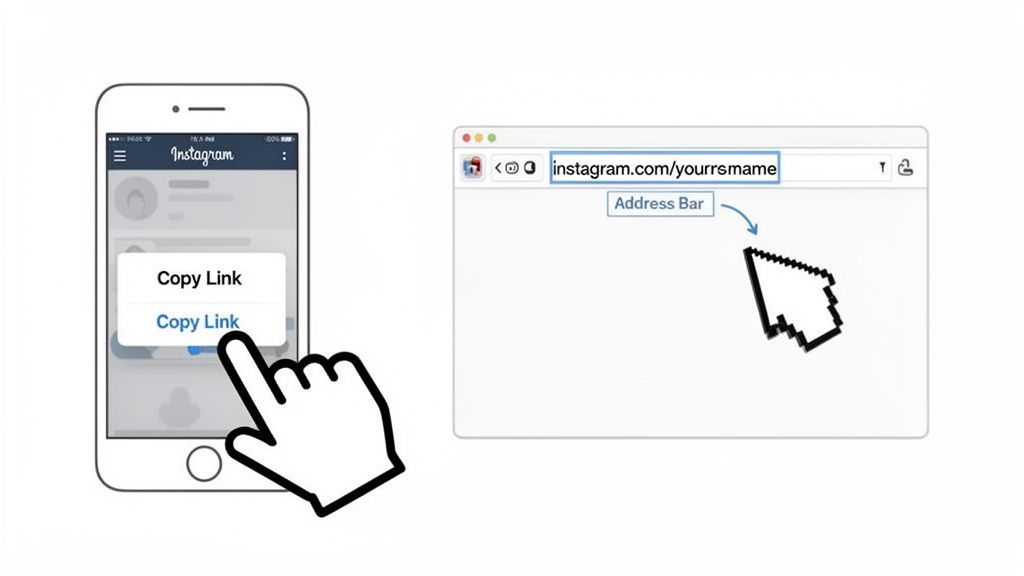
As you can see, Instagram puts the "Copy Link" option right where you need it, making it a simple, two-tap process from your profile page.
Your Go-To Cheat Sheet
Because nobody has time to hunt through menus, I've put together a quick reference table. This is the fastest way to get your link, no matter what device you're on.
| Device | Best Method | Key Step |
|---|---|---|
| iOS/Android | Use the "Share Profile" button | From your profile, tap "Share Profile," then "Copy Link." |
| Web Browser | Copy from the address bar | Go to your profile and copy the full URL from the browser's address bar. |
Bookmark this page if you need a reminder! It's one of those simple tasks that can really speed up your workflow when you're managing multiple platforms.
Table of contents
How to Snag Your Instagram Profile Link on Any Device
Your Instagram profile link is basically your digital front door. It’s the one URL that connects your followers to everything else you do online, so knowing how to grab it quickly on any device is a must. The steps are slightly different depending on whether you're on your phone or a computer, but it's simple once you know where to look.
Honestly, this is more than just a bit of technical know-how; it’s a core skill for anyone serious about growing their brand. With a staggering 3 billion monthly active users, Instagram is a powerhouse for driving traffic. Getting that link right means you can funnel all those eyeballs directly to your main website, portfolio, or online store.
Nabbing Your Link on an iPhone or Android
When you're on the go, Instagram makes sharing your profile a breeze. The "Share Profile" button is your go-to, and thankfully, it works the same way on both iPhones and Androids.
Here’s how you do it:
- First, pop open the Instagram app and tap your profile picture in the bottom-right corner to get to your page.
- Right below your bio, you’ll see a button that says "Share Profile." Give that a tap.
- A little menu will slide up. Just hit "Copy Link," and boom—the URL is copied and ready to be pasted wherever you need it.
Think of your profile link as your new business card. It's the URL you'll drop in your email signature, add to other social bios, and, most importantly, use with your link-in-bio tool to create a seamless experience for your followers.
Grabbing the URL on Your Desktop
If you're already at your computer, it's even easier. You don't have to click through any menus in the app itself.
Just head over to Instagram.com in your browser and click on your profile. Take a look at the address bar at the top of your browser—that’s your link! It will look something like https://www.instagram.com/yourusername. Simply highlight the whole thing, copy it, and you're good to go.
This is my preferred way to do it when I'm setting up a new project or updating my website. It’s especially handy when you’re building out a powerful link-in-bio for Instagram, since you’re probably already on a computer for that kind of work anyway.
Sharing Links to Specific Instagram Content
Your Instagram profile is your digital storefront, but your individual posts, Reels, and Stories are the products on the shelves. That’s where the real magic happens. Knowing how to grab a direct link to that one killer Reel or that gorgeous photo post is a total game-changer for getting your best work seen.
Instead of just pointing everyone to your main profile and hoping they find what you're talking about, you can send them straight to the good stuff. Think about it: you could drop a direct link to a new product reveal in your email newsletter or cross-promote a viral Reel on your TikTok. This turns your entire Instagram presence into a powerful, targeted marketing tool.
Nabbing a Link to a Specific Post or Reel
This is probably the link you'll copy most often, and thankfully, it's incredibly simple. Whether you're trying to share a photo, a carousel, or a Reel, the process is pretty much the same on your phone or computer.
On the mobile app (both iPhone and Android), just pull up the post or Reel you want to share. See that little paper airplane icon right below the content? Tap it. A menu will pop up, and you’ll see the "Copy Link" option. Give that a tap, and boom—the URL is copied and ready to paste anywhere you want.
If you're on a desktop, it's even easier. Just open the post in its own browser tab and copy the full URL straight from your address bar. Done.
Sharing Links to Your Instagram Stories
You can also grab a link to a live Story, but here's the catch: that link has a very short shelf life. It will only work for the 24 hours your Story is active. Once the Story disappears, the link is dead.
To get the link, open your own Story and tap the three-dot menu (More) in the bottom-right corner. From the options that appear, choose "Copy Link." This is perfect for time-sensitive announcements or sharing something happening right now, but always remember it's temporary.
This quick decision tree breaks down how to find that link, no matter what device you're on.
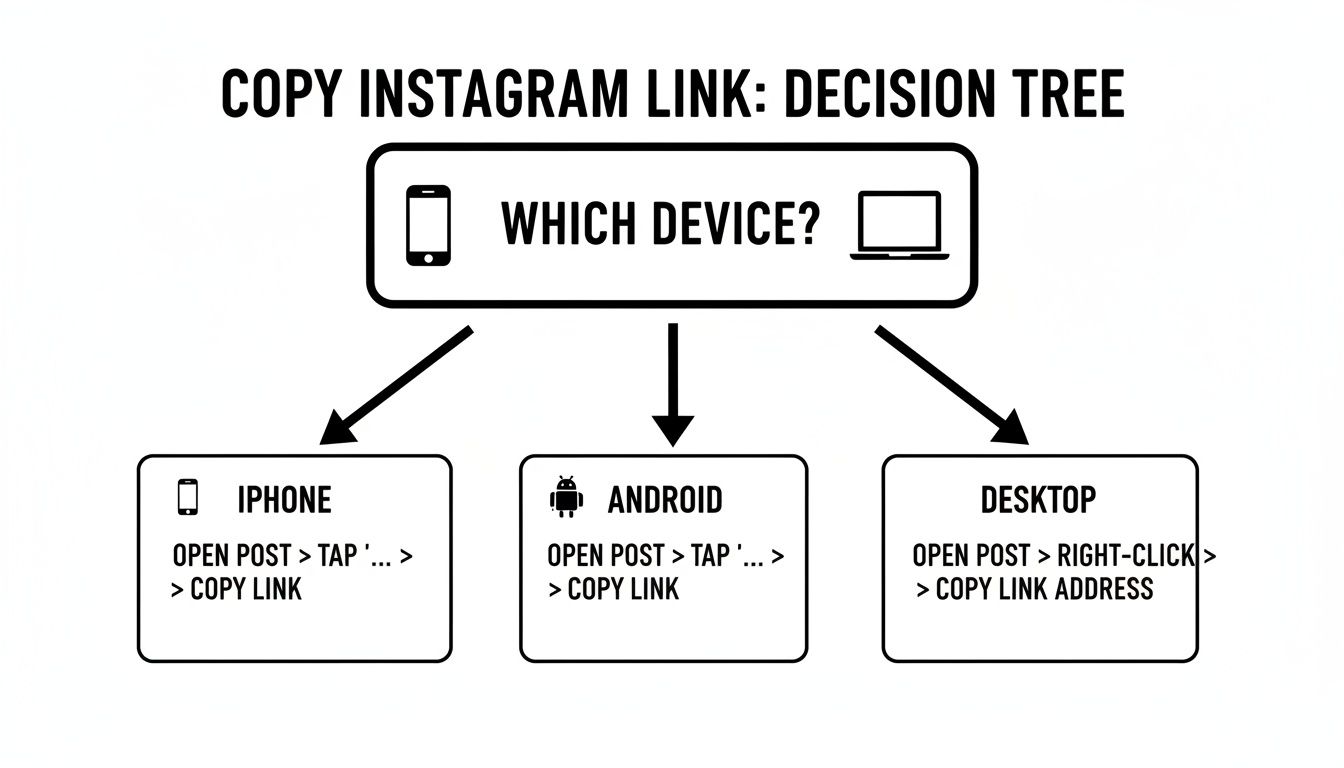
The main takeaway here is that while the buttons might look a little different, the core idea is always the same: find a "share" or "copy" option. Once you've done it once, you've pretty much mastered it for all content types.
The ability to link directly to your best-performing content is absolutely critical. For example, some studies show Instagram Reels can generate 22% more engagement than standard video posts. When one of your Reels starts blowing up, you want to pour fuel on that fire by linking directly to it everywhere you can.
Once you have your link, it’s time to share it. If you're looking for more advanced strategies, this is a great guide on how to post a link on Instagram. And don't forget to check out our own deep dive into https://taap.bio/blog/how-to-link-a-website-on-instagram for more pro tips.
Turn That Link Into a Visual Masterpiece
Okay, so you've got your Instagram link copied. Great! But what's next? Just dropping that raw URL into your other social media bios gets the job done, but honestly, it’s a huge missed opportunity. You can do so much more than that. This is your chance to turn a simple line of text into a powerful, visually stunning hub for your brand.
The classic "link in bio" is just a boring, vertical list of buttons. Let's be real, it's outdated. Imagine instead a beautiful, bento-box-style grid that immediately grabs attention. This modern layout lets you build a unique page that feels less like a directory and more like a personalized digital dashboard, perfectly reflecting your unique vibe.
Put Your Instagram Content Front and Center
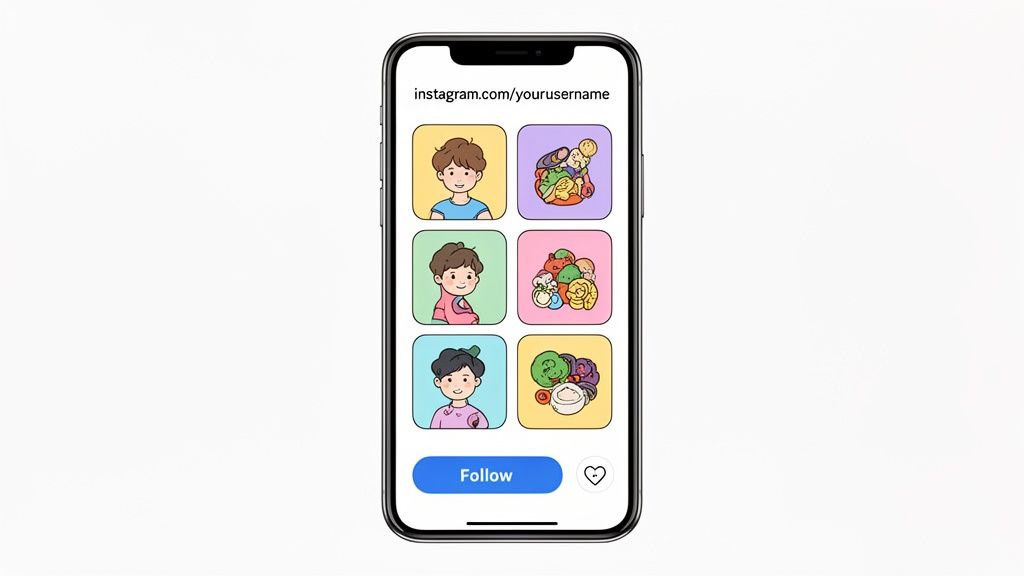
Bringing your newly copied Instagram link into a tool like Taap.bio unlocks some seriously cool ways to show off your content. With our Instagram smart widget, you don't just point people to your profile—you bring your profile to life right on your page.
This is way more than just a static button. The widget can dynamically pull in:
- Your Latest Photos: A live grid of your six most recent posts.
- Your Follower Count: Social proof that updates on its own.
- A Follow Button: Letting visitors follow you without ever leaving your Taap.bio page.
This creates a smooth, interactive experience. Visitors get an instant taste of your Instagram, making them far more likely to hit that follow button right then and there.
Build a Landing Page That’s Actually You
Your link-in-bio page should feel like an extension of your brand, not some generic placeholder. The look and feel matter—a lot. In fact, 93% of influencers say that the quality of a brand's social content impacts their decision to collaborate. A professional, cohesive landing page signals that you care about your aesthetic.
When you move beyond a simple list of links, you're crafting a destination. You can arrange your Instagram widget alongside your latest YouTube videos, Spotify playlists, and key articles, creating a rich, multimedia experience that tells your complete story.
With a flexible grid system, you're in total control of the layout. You can place your most important content in the most prominent spots, resize blocks to create a visual hierarchy, and build something that feels uniquely yours. If you need some inspiration, check out our guide on creating an effective link-in-bio grid.
Pro Tips for Making Your Instagram URL Work for You
Knowing how to grab your Instagram link is just the first step. The real magic happens when you share it in a way that actually gets clicks and makes an impact.
Let's be honest, a raw Instagram URL is long and clunky. It looks messy on a business card and is impossible for anyone to remember. This is where a good URL shortener comes into play.
I'm a big fan of using services like Bitly or TinyURL. These tools don't just shorten your link; they transform it into something clean and professional. Even better, many offer analytics, so you can see exactly how many people clicked your link and where they came from. That's invaluable data for any marketing effort.
Put Your Polished Link Everywhere
Once you've got that neat, shortened URL, don't just stick it in your bio and call it a day. Your Instagram profile is a key piece of your online presence, so treat its link like a digital handshake.
Think about all the places you can seamlessly integrate it:
- Your professional email signature
- Your physical and digital business cards
- Your resume or online portfolio
- The footer of your website or personal blog
A Quick Troubleshooting Tip: Ever have someone tell you your link just leads to a login page? It's a common issue. It usually just means they aren't logged into Instagram on that particular browser. The simple fix is to suggest they open it in a browser where they're already signed in.
Making your Instagram link easy to find and click is a small change that makes a big difference. For more ideas on getting people to take action, check out our guide on improving website conversion rates.
Got More Questions? We’ve Got Answers
Even after you've mastered the steps, a few questions about Instagram links might still pop up. That’s perfectly normal. Let's clear up some of the most common points of confusion so you can share your content confidently.
The biggest thing people wonder about is the connection between their username and their actual profile link. It’s simpler than you think. Your Instagram URL is just the main Instagram website address followed by your username. So, if your handle is @yourbrand, your link is simply instagram.com/yourbrand. That’s it!
Is My Instagram Username Basically My Link?
Yes, for all practical purposes, it is. The formula never changes: https://www.instagram.com/ followed immediately by your username (just leave out the "@" symbol). This simple structure is your go-to, even if you have to type it out by hand.
This consistency is a lifesaver. If you ever need to give someone your profile link but don't have your phone handy, you can just tell them. As long as you remember your username, you know your URL.
Pro Tip: Choose a professional and memorable username from day one. Since it becomes the core of your URL, a clean username creates a clean, shareable link that looks sharp on business cards, email signatures, or anywhere else you post it.
How Do I Share Someone Else’s Profile?
Need to send a friend's or a collaborator's profile to someone? The process is exactly the same as sharing your own. Just head over to their profile page, tap that three-dot menu icon in the top right, and hit "Copy Profile URL." It’s perfect for giving shout-outs or making introductions.
Help! The Share Profile Button Isn't There!
Every now and then, an app update or a temporary glitch might make the "Share Profile" button disappear. Don't panic—you have a couple of solid workarounds.
First, you can always fall back on building the URL manually, just like we talked about above. The other easy fix is to log into Instagram on a desktop or mobile web browser. Once you navigate to your profile, the full, correct URL will be sitting right there in the address bar, ready for you to copy and paste.
For a more detailed breakdown of different methods, this guide on how to get your Instagram URL on any device has some excellent extra tips.
Ready to turn that plain link into a powerful, interactive landing page? With Taap.bio, you can build a gorgeous bento-style grid that puts your Instagram feed, latest videos, and all your crucial links in one stunning spot. Get started for free today!


