
Have you ever been in that spot where someone asks for your Instagram handle, and you fumble around, not sure of the quickest way to send them a direct link? It happens to the best of us. The easiest trick is right inside the app: just head to your profile, tap the "Share Profile" button, and hit "Copy Link." Boom. Your unique URL is now on your clipboard, ready to share.
Table of contents
Your Guide to Finding and Copying Your Instagram Link
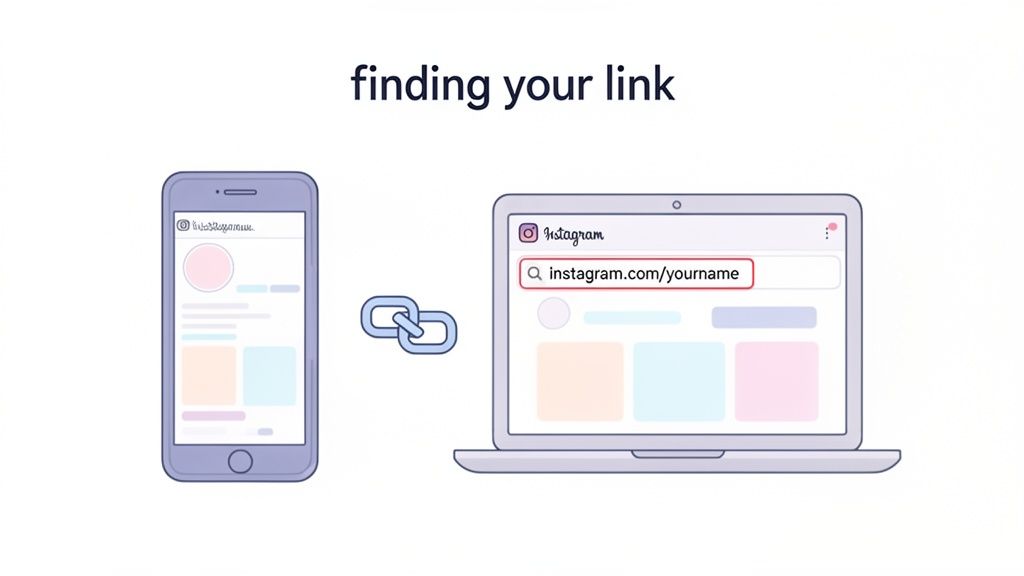
Knowing how to grab your Instagram link is more than just a bit of technical know-how—it’s about taking control of your online presence. That little URL is the bridge that connects people from TikTok, X, your email list, or anywhere else, straight into your Instagram world. For creators and brands, it’s a non-negotiable tool for growing your audience and making sure your content gets seen.
Why Your Instagram Link Matters
Think of your Instagram link as your digital business card. You use it to invite people directly into your curated space. Whether you're dropping it into an email signature, printing it on a flyer, or building out a powerful "link in bio" page, having your URL handy is crucial. Truly understanding what a bio link means can fundamentally change how you guide your online traffic and convert followers into customers.
This one link can become the gateway to your entire brand. When you plug it into a tool like Taap.bio, you turn that simple URL into a dynamic hub where your audience can find everything you offer, from your latest videos to your professional portfolio.
The ability to share a direct link is a cornerstone of digital marketing. Instagram introduced the bio link back in 2016, and it remains a vital feature for the platform's 200 million business profiles today.
The Power of a Single Click
With a mind-boggling 95 million photos and videos shared on the platform every single day, your one clickable link is a golden ticket to stand out. And the game has definitely evolved; with 67% of users now tapping on links in Stories, it's clear people want easy ways to navigate.
Learning how to copy the link to your profile, a specific post, or a Reel isn’t optional anymore. It’s a core skill for anyone serious about building a community online.
Grabbing Your Link from the Instagram Mobile App
Since you probably spend most of your Instagram time on your phone, this is where you'll be grabbing links most often. Luckily, whether you're on an iPhone or Android, the steps are pretty much the same. Instagram keeps it simple, so you can get your main profile link in just a couple of taps.
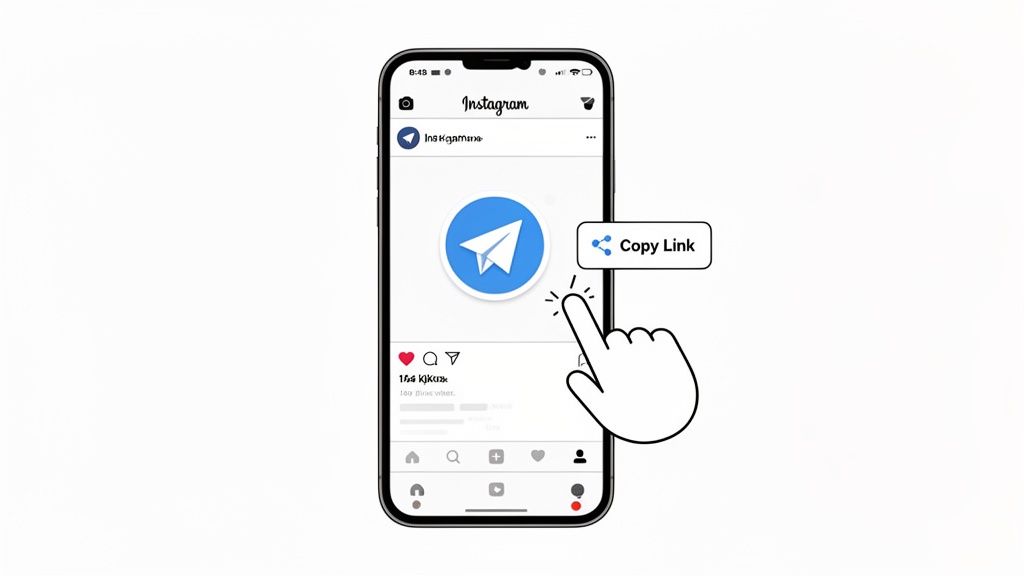
When you're on your profile, you'll spot a "Share Profile" button right under your bio. Give that a tap, and you’ll see an option for "Copy Link." That's it. This instantly saves your profile URL to your phone's clipboard, ready to be dropped into a text, an email, or your Taap.bio page.
Copying Your Main Profile Link
This is the link you'll need the most. Think of it as your digital business card—the one you hand out to get people to your main page.
Here’s the fastest way to get it:
- Pop open the Instagram app and tap your profile picture in the bottom-right corner to get to your page.
- Find the "Share Profile" button sitting right under your follower count and bio.
- A new screen appears with your QR code. Below it, you'll see two buttons: "Copy Link" and "Share Profile."
- Just tap "Copy Link," and the URL is copied and ready to paste.
This is a lifesaver when a new contact asks for your Instagram or when you're filling out your profile on another platform and want to cross-promote. Sure, the link is always instagram.com/your_username, but this trick saves you from typing it out and risking a typo.
Getting a Link to a Specific Post, Reel, or Story
Sometimes, you don't want to send someone to your entire profile; you want to highlight a specific piece of content. It could be that awesome Reel that’s blowing up, a post with a big announcement, or a Story you want a friend to see.
Knowing how to copy an Instagram link for individual content is a total game-changer. When I'm collaborating with another creator, I can send them the exact post we’re discussing instead of telling them to "go look at the third photo on my grid." It just looks more professional and saves everyone time.
For a Post or Reel:
- Head to the post or Reel you want to share.
- Tap the three-dots menu (●●●) in the top-right corner of the content.
- From the menu that slides up, look for the "Link" option (it usually has a little chain icon). Tap it, and the direct URL is copied.
For a Story:
- While you're watching your own Story, tap the three-dots menu (●●●) in the bottom-right corner.
- Choose "Copy Link" from the options that appear.
Mastering this is key for sending traffic exactly where you want it. Once you've got this down, you can explore more advanced strategies, like figuring out how to link a website on Instagram to really boost your engagement. Sharing direct links is the foundation for building a more strategic and connected presence online.
Getting Your Instagram Link on a Computer
Let's be honest, when you're in the zone at your desk, the last thing you want to do is fumble with your phone just to find a link. Grabbing your Instagram URL from a computer is easily the most direct and efficient method. It's my go-to when I'm updating my Taap.bio page, adding it to an email signature, or building out a new portfolio.
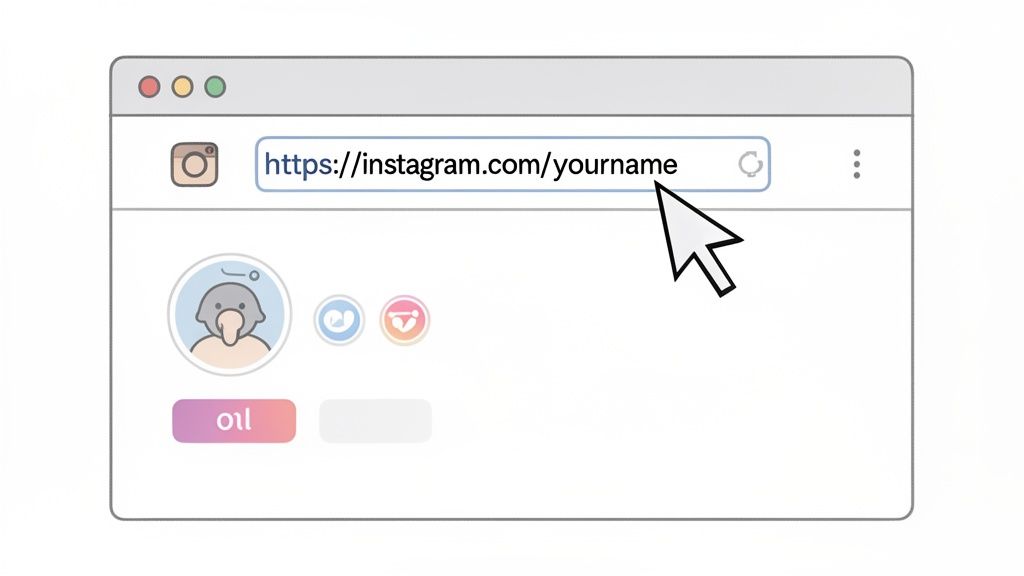
The best part? Your profile URL is right there in plain sight, sitting in your browser's address bar. No digging through menus, no hunting for a share button. Just navigate to your profile, and you're good to go.
Grab Your Profile Link in a Flash
Finding your main profile link on a desktop is almost laughably simple. This is precisely why so many creators and social media managers I know prefer to handle their link management on a computer—it just streamlines the whole process.
Here’s all you have to do:
- Fire up your web browser and head over to Instagram.com.
- Click on your profile picture, which is usually tucked away in the corner, to navigate to your main profile page.
- Once your profile loads, just look up. That URL in the address bar—the one that looks like
https://www.instagram.com/yourusername—is exactly what you need. - Click into the address bar to highlight the whole thing, then right-click and hit Copy. Or, even faster, use the keyboard shortcut: Cmd+C on a Mac or Ctrl+C on Windows.
Your Instagram URL is a core piece of your digital identity. Think of it as the direct gateway to your brand's world. Having it ready to paste in a second not only saves time but also cuts out any risk of sending people to the wrong place with a typo.
Linking to a Specific Post or Reel
Need to share a link to a specific photo, video, or Reel? The process is just as easy.
From your computer, simply click on the piece of content you want to share. As soon as it opens, you'll see the URL in your browser's address bar update to that content's unique link. Just copy it the same way you did for your profile. This is super handy for things like highlighting a specific campaign in a newsletter or dropping a direct link into a blog post.
This desktop approach works for other platforms, too. For example, you can find your URL for X (formerly Twitter) using a very similar method.
Why Sharing Specific Content Can Skyrocket Your Engagement
Your main profile link is great—it's your digital business card. But let's be real, the real action is in your content. Why send someone to your profile's front page when the party is happening around your latest viral Reel?
Think about it. If you’re a musician who just dropped a new single, you don't want people hunting for it. You want to send them directly to the announcement post or the Reel with the song. This is about making it dead simple for your audience to engage with what matters right now.
Knowing how to grab the link for a specific post, Reel, or Story transforms your content from a passive update into an active tool for any campaign you're running.
Direct Traffic to Your Best Stuff
When you push traffic directly to a specific piece of content, you're sending a powerful signal to the Instagram algorithm: "Hey, this is important!" This is a huge deal, especially since shares are a massive factor in how your content gets seen.
I can't stress this enough: the Instagram algorithm often values shares more than likes or even saves. When someone shares your content, it tells the platform that it's worth showing to more people. Being able to easily copy and share a direct link to a post or Reel is one of the most effective ways to fuel that organic growth.
Create a Curated "Link in Bio" Experience
This is where it all comes together on your "link in bio" page. With a tool like Taap.bio, you're not just limited to showing your latest feed. You can strategically feature a specific viral video, an important announcement post, or a fan-favorite Reel right at the top.
This creates a much more compelling experience for anyone who clicks your bio link. Instead of just a generic grid, you're presenting a curated highlight reel of your best work. It's a powerful way to combine your main profile link with direct links to your standout content.
For more ideas on keeping your feed engaging, check out our guide on how to repost an Instagram post.
And once you've mastered sharing your links, it's time to learn how to increase engagement on Instagram and really maximize your reach.
Putting Your Instagram Link to Work
Okay, so you've got your Instagram link copied. Now what? The real magic isn't just having the link; it's about what you do with it. Pasting a simple URL works, sure, but you can turn that single link into a powerful hub that showcases everything you do.
Think beyond just sending people to your profile grid. Imagine creating a destination where your Instagram feed is just one piece of a much bigger, more engaging puzzle.
Turn a Simple Link Into a Stunning Page
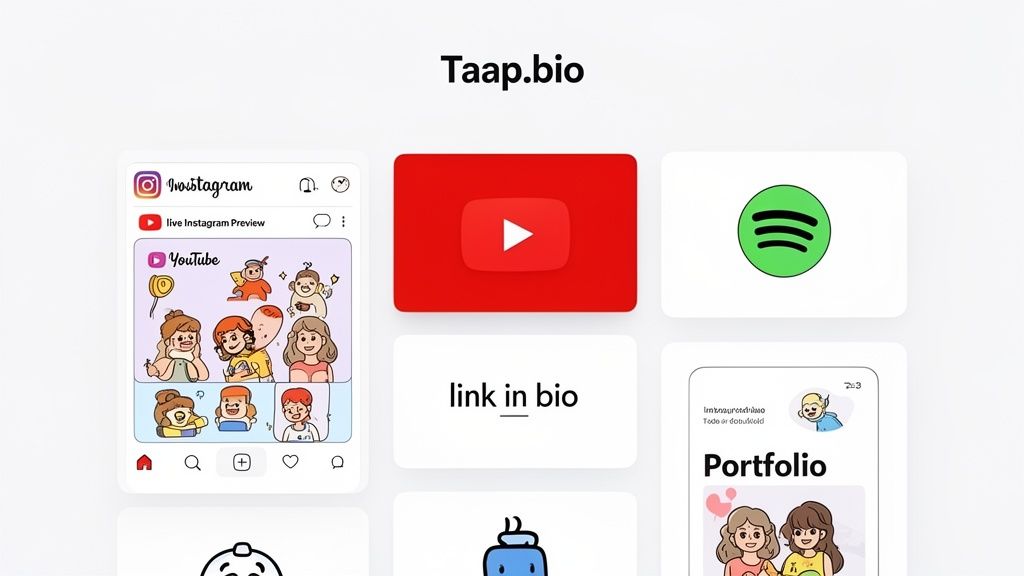
This is exactly what tools like Taap.bio are built for. Instead of a boring, vertical list of links, you can build a beautiful, bento-box-style page that feels more like a mini-website or a personal portfolio. Your freshly copied Instagram link transforms into a live, embedded feed of your latest posts, right on the page.
Your link in bio is no longer just a utility; it's a creative expression of your digital brand. It’s the first impression many will have of your entire online world, so make it a memorable one.
With this setup, your Instagram presence sits elegantly alongside your latest YouTube videos, your go-to Spotify playlists, or links to your professional work. It’s a far richer and more interactive experience for anyone who clicks. To really see the difference a visual layout can make, check out our breakdown of the best link in bio tools available today.
The bio link has been a core Instagram feature since 2016, and it’s now the engine of a huge sharing economy. In fact, 62% of users say they become more interested in a brand after seeing it in their Stories. Your single profile URL connects your audience to the best of your work, harnessing the power of over 40 billion shared photos and videos.
Got Questions About Your Instagram Link?
Once you've mastered copying your Instagram link, you might still run into a few tricky situations. Let's walk through some of the most common questions I hear, so you can share your profile like a pro and fix any little hiccups along the way.
"Help! My Instagram Link Isn't Working!"
It’s a frustrating moment, for sure. You send someone your link, and they get an error. Nine times out of ten, the problem is one of two things.
First, check if your account is set to private. If it is, that link will only work for people who already follow you. To anyone else, it’s a dead end.
The other common culprit is a simple typo. It happens to the best of us! Your URL is always instagram.com/yourusername, so give it a quick once-over to make sure your username is spelled perfectly.
"Can I Change My Instagram URL?"
Absolutely, but there's a catch: your URL is directly tied to your username. If you want a new link, you have to change your username.
You can do this by tapping Edit Profile on your page and typing in a new username. The moment you save it, your URL updates automatically. The big thing to remember is that your old link will instantly break.
Don't forget: changing your username means you have to go update that link everywhere you've posted it. Think about your email signature, other social bios, and especially your Taap.bio page.
Link vs. QR Code: Which One Should I Use?
This really comes down to where you're sharing. Each one has its moment to shine.
- Go with the link for anything digital. We're talking emails, text messages, DMs, or adding it to your bio on another platform. It’s clean, clickable, and gets people right where they need to go.
- Use the QR code for the real world. Think business cards, flyers, posters at an event, or even on a sticker. It's perfect for when someone has their phone out and can just scan and follow you on the spot—no typing needed.
Ready to turn that simple link into something truly powerful? With Taap.bio, you can build a beautiful landing page that pulls in your live Instagram feed, showcases your videos, and so much more. Start building your page for free on taap.bio.


